FreePixelate

Pixelate any image

Turn a photo into chunky pixel art for a retro look, a game sprite feel or a playful post. Pick the block size, convert a batch at once. Free and private.

  • No upload
  • No watermark
  • Batch + ZIP
  • Free account
Need more? Open the full editor
imagePixelate
Pixel size

or drop them anywhere on this page · up to 100 at once · paste works too

03How it works

Three steps. Seconds.

  1. 01Add your imagesDrop one or many on the box, choose them, or paste one with Ctrl or ⌘ + V.
  2. 02Pick the pixel sizeFine, Medium, Chunky or Huge blocks. Every file updates at once.
  3. 03DownloadSave each image, or all of them as one ZIP.

04Why CutLift

Built to be the best one

  • Real block coloursEach block is the average colour of the pixels it covers, so the picture stays recognisable.
  • Crisp edgesBlocks are drawn without smoothing, for a clean pixel-art look.
  • Many files at onceDrop up to 100 images together and download them one by one or as a single ZIP.
  • Nothing is uploadedThe conversion runs in your browser, on your device. Your pictures never reach a server.

Free and unlimited. CutLift Pro adds batch processing, upscaling, sky replacement and studio exports for $7.99/month.

05The guide

From photo to pixel art

What pixelating does

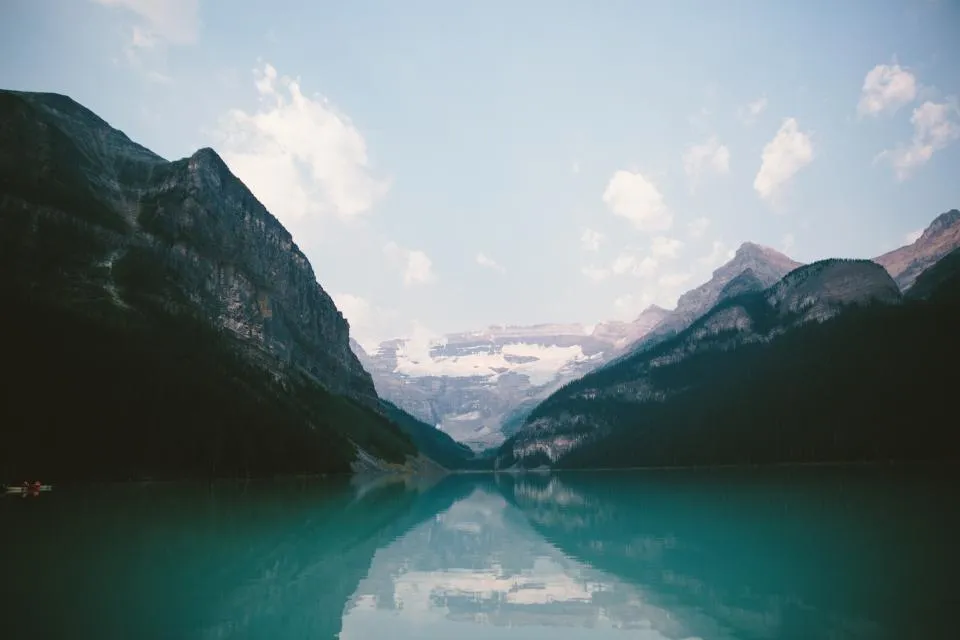
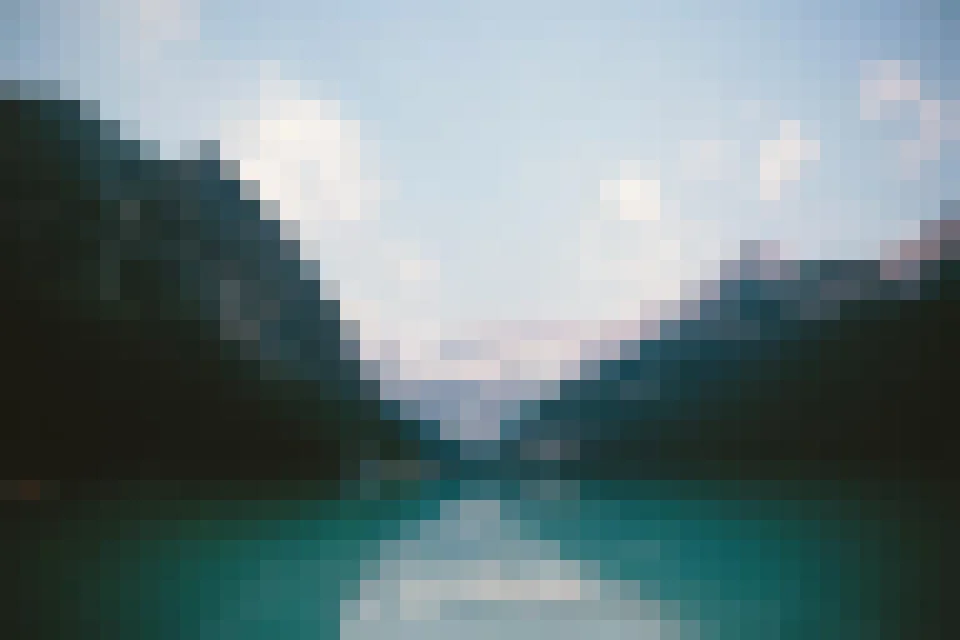
Pixelating turns a picture into a grid of large square blocks. Each block takes the average colour of the pixels it covers, so the scene stays recognisable while fine detail disappears. The result looks like retro pixel art, an old video game or a low-resolution screen, which makes it popular for game sprites, playful social posts, thumbnails and posters with an 8-bit style.

Drop an image, pick a block size and download. Fine keeps most of the picture readable, Medium gives a classic pixel-art look, Chunky and Huge turn it into bold abstract tiles.
Getting a clean pixel-art look

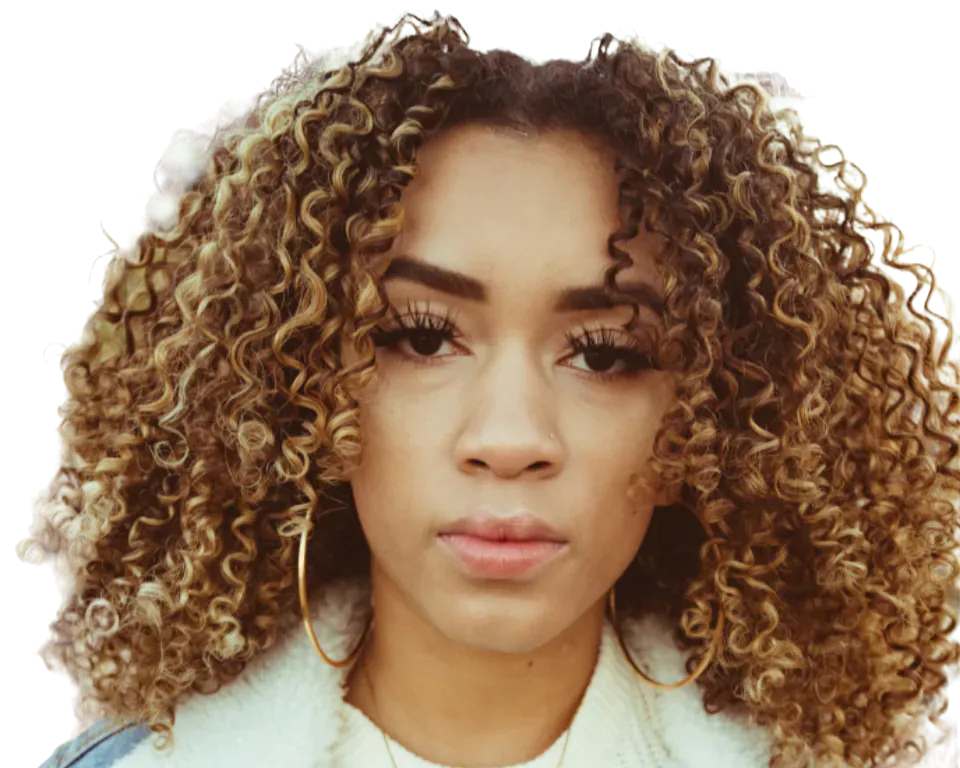
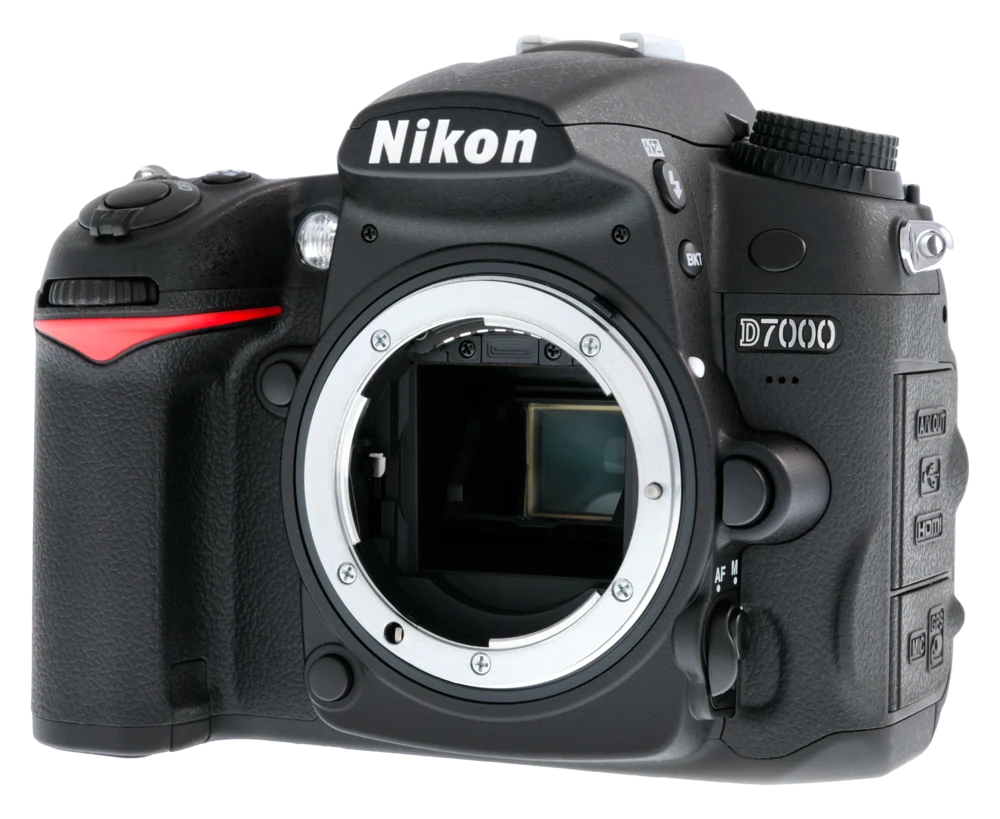
The block size is a share of the picture’s long side, so a batch of different sizes gets the same look. The blocks are drawn without smoothing, so every edge stays sharp instead of blurry. Simple pictures with strong shapes and colours, such as a logo, a pet or a portrait against a plain background, work best; very busy photos become noisy at small block sizes.

Hiding details, batches and privacy

This page pixelates the whole image. To hide only a face or a number plate, open the photo in CutLift, select that area and blur it there; for anything sensitive, covering or removing it is safer than pixelating, since small blocks can sometimes be read back. Drop up to 100 images and download each or one ZIP; every file keeps its format. The work happens in your browser, so nothing is uploaded, and a free CutLift account unlocks the downloads.

More looks in the editor

Click Edit on a result to keep working in the CutLift editor. Its Convert panel has the same pixel sizes with a live preview, and you can add a border, rounded corners or a watermark to the pixel art before saving it as PNG, JPG, WebP or a PDF. For a classic game look, try pixelating a cut-out subject on a plain background.

07Questions

Good to know

How do I pixelate an image?

Drop it on the box above, choose the pixel size, then click Download.

Pixelate any image

Free to start. Your photo never leaves your device.

Open the editor

70 more tools

Keep going