FreeCircle crop

Crop an image into a circle

Make a round picture for a profile photo, avatar, logo or slide. Move and zoom the circle, then download a PNG with a transparent outside.

  • No upload
  • No watermark
  • Batch + ZIP
  • Free account
Need more? Open the full editor
imagePNG
Ring

or drop it anywhere on this page · paste works too

03How it works

Three steps. Seconds.

  1. 01Add your imageDrop a photo on the box, choose one, or paste with Ctrl or ⌘ + V.
  2. 02Frame the circleZoom in and move the circle to the face or logo. Add a ring if you like.
  3. 03Download the PNGThe outside of the circle is transparent, ready for any background.

04Why CutLift

Built to be the best one

  • Transparent cornersA PNG with a clear outside sits cleanly on any page or slide.
  • Zoom and positionCentre the circle on the face, not just the middle of the photo.
  • Optional ringAdd a white or coloured border around the circle.
  • Nothing is uploadedThe conversion runs in your browser, on your device. Your pictures never reach a server.

Free and unlimited. CutLift Pro adds batch processing, upscaling, sky replacement and studio exports for $7.99/month.

05The guide

The circle crop guide

When a circle crop works well

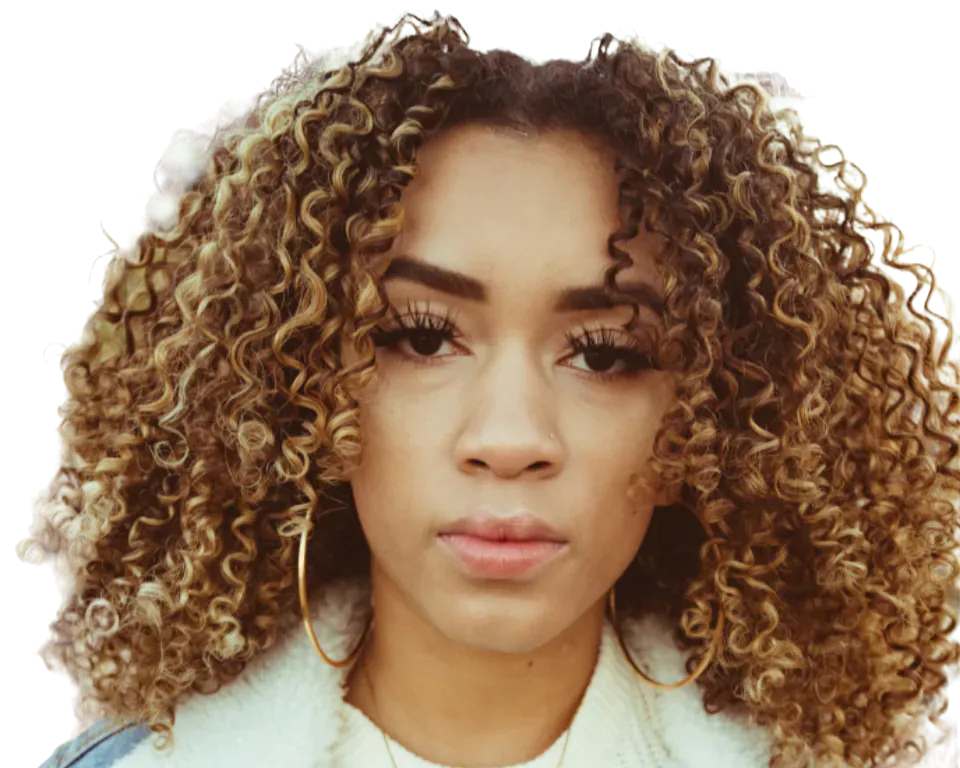
A round picture is the usual shape for a profile photo, an avatar, a team photo on a slide or a logo badge. Many sites crop profile photos into a circle on their own, so a round file gives you control over how the face is framed before you upload it. A round file is also easy to reuse in several places, since the transparent edge fits any background.

A circle also works well as a sticker, a sign or a decorative element in a design. Because the result has a clear outside, it sits cleanly on any background.
Framing the circle and adding a ring

Drop one photo on the box, choose it, or paste it with Ctrl or ⌘ + V. Use the zoom slider to set how much of the picture the circle shows. Drag the photo until the face or logo sits in the middle of the circle. Work slowly, zooming out now and then to check that nothing important is cut off at the edge.

You can add an optional ring in White, Black or Orange. A ring makes the edge of the circle stand out against a busy or dark background. Turn it off for a plain edge. The ring is drawn on the circle only, so the rest of the picture keeps its shape.

Why the result is a PNG with a transparent outside

Only formats with transparency can have round corners. The result is a PNG, and the area outside the circle is transparent. This keeps the corners clear when you place the picture on a page, a slide or another image.

Click Download to save the round PNG. To make more changes, open the result with the Edit button and continue in the full CutLift editor. The crop runs on your device, so the photo is not uploaded, and the tool is free with no watermark. It works on a phone too, so you can frame a profile picture while you are out.

07Questions

Good to know

How do I make a round profile picture?

Drop your photo here, zoom and drag so your face sits in the middle of the circle, then download the round PNG and upload it as your profile picture.

Crop an image into a circle

Free to start. Your photo never leaves your device.

Open the editor

70 more tools

Keep going