FreeCanva background remover alternative

Remove backgrounds free, then design in Canva

Cut out people, products and pets in one click, as many as you like, and drop the transparent PNG into your Canva design. The cut-out happens on your own device.

Drop your photo hereIt opens in the editor. Nothing is uploaded. Choose a photoJPGPNGWebPHEICPSDRAW

No photo? Try ours

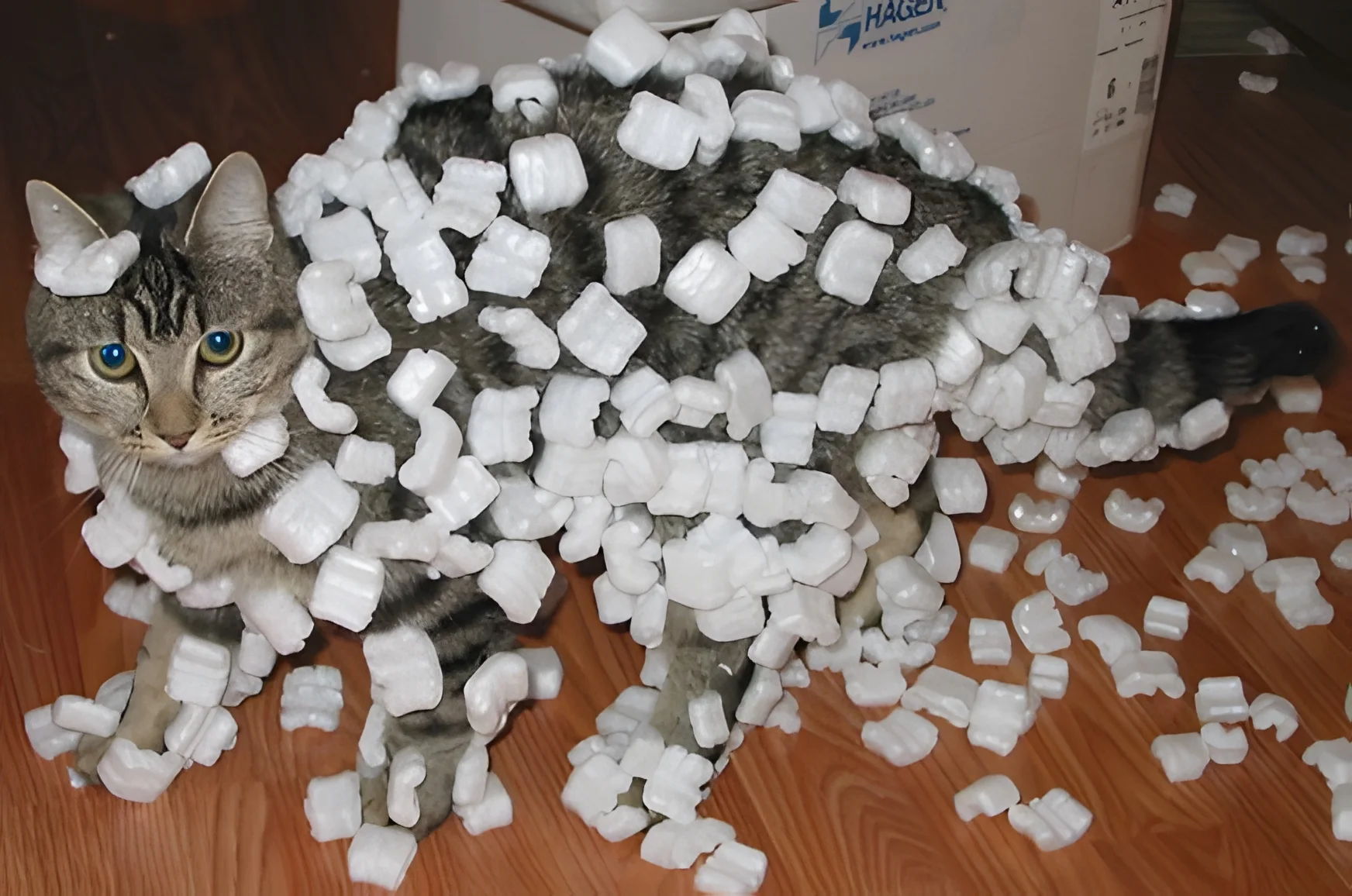
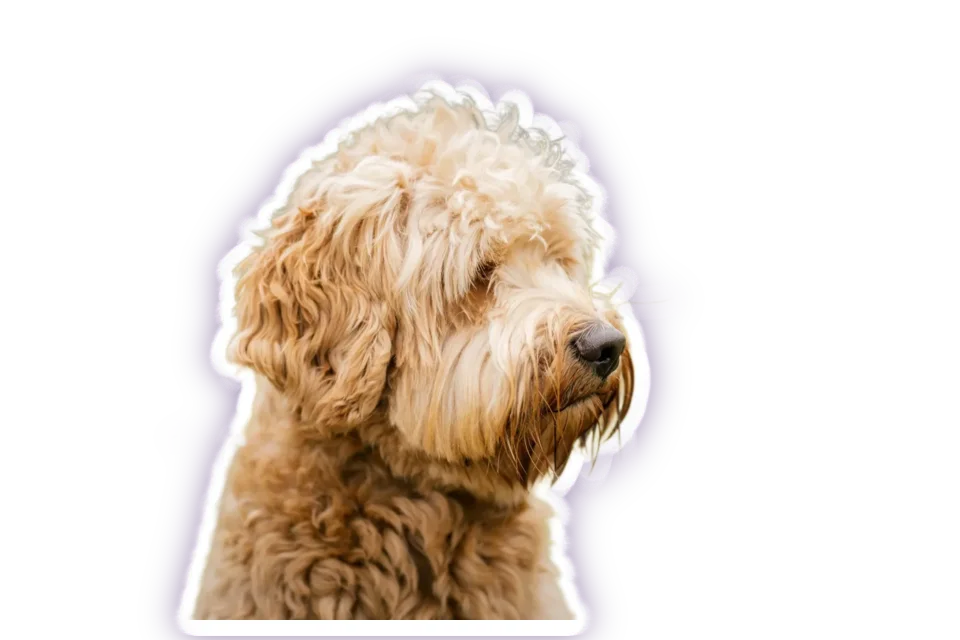
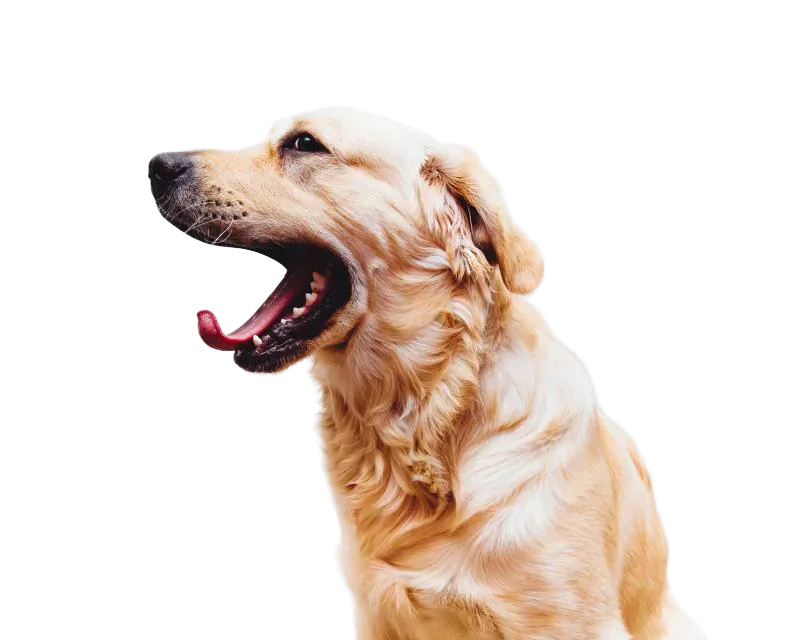
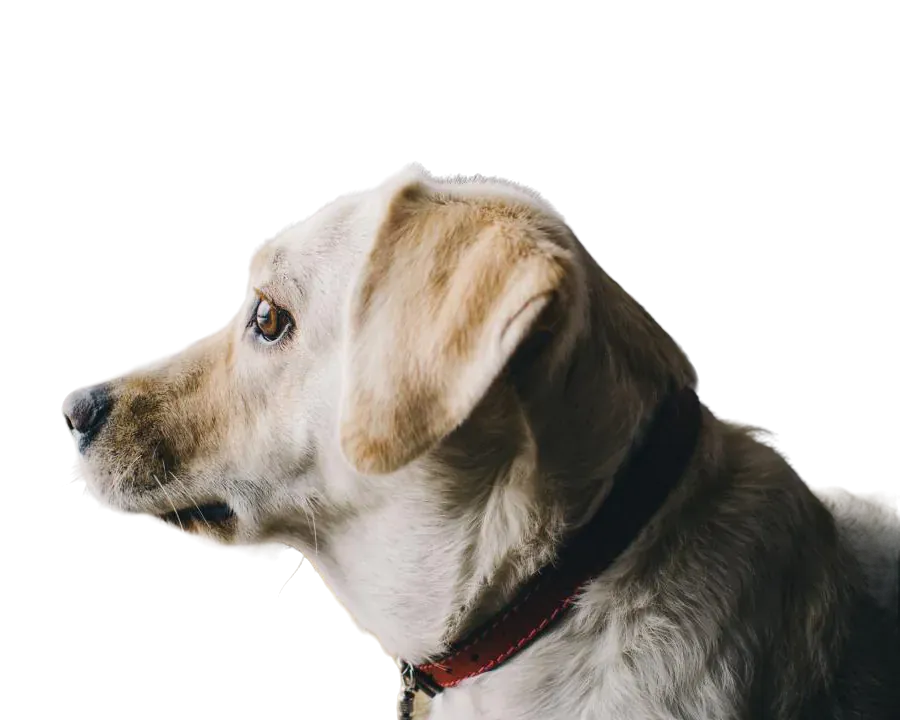
Retriever cut out on a transparent background
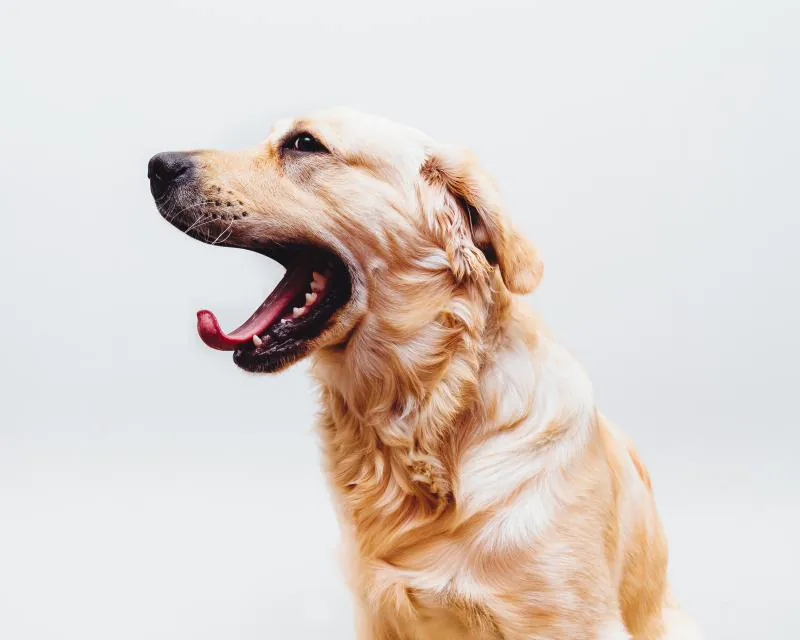
Retriever: the original photo
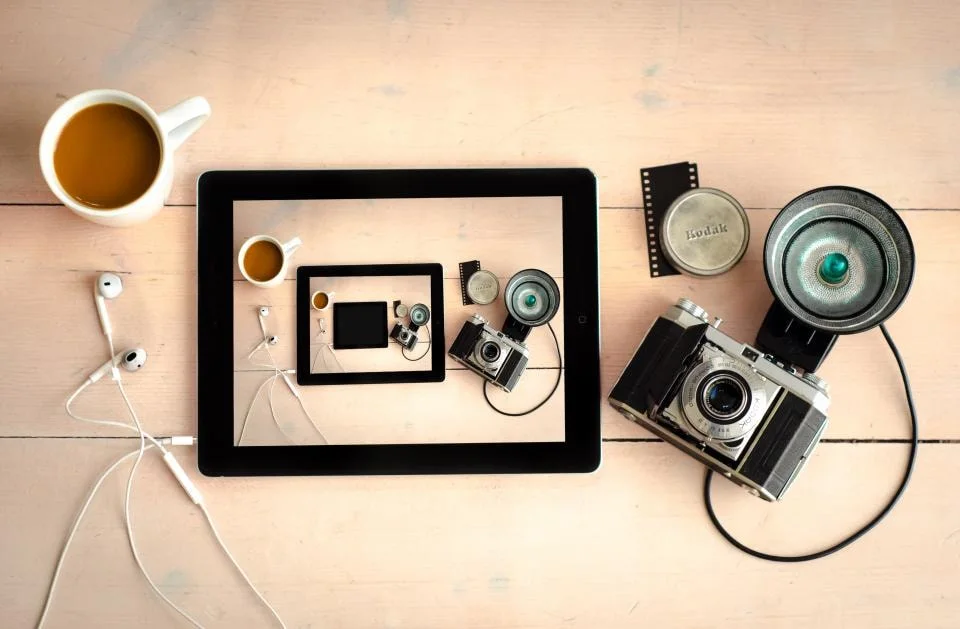
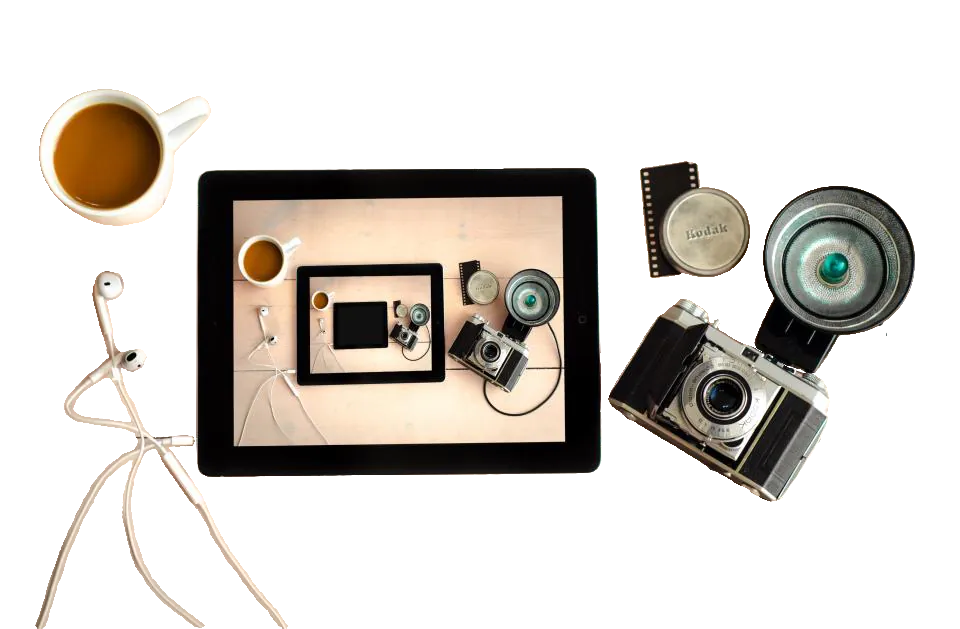
BeforeAfterBackground: gone

Fluffy fur: one click, no brushing.

Live demo01 / 08

01New background

Then drop it on anything

The cut-out is a real transparent layer. Put it on white, a colour, a gradient or a new photo, or download the PNG as it is.

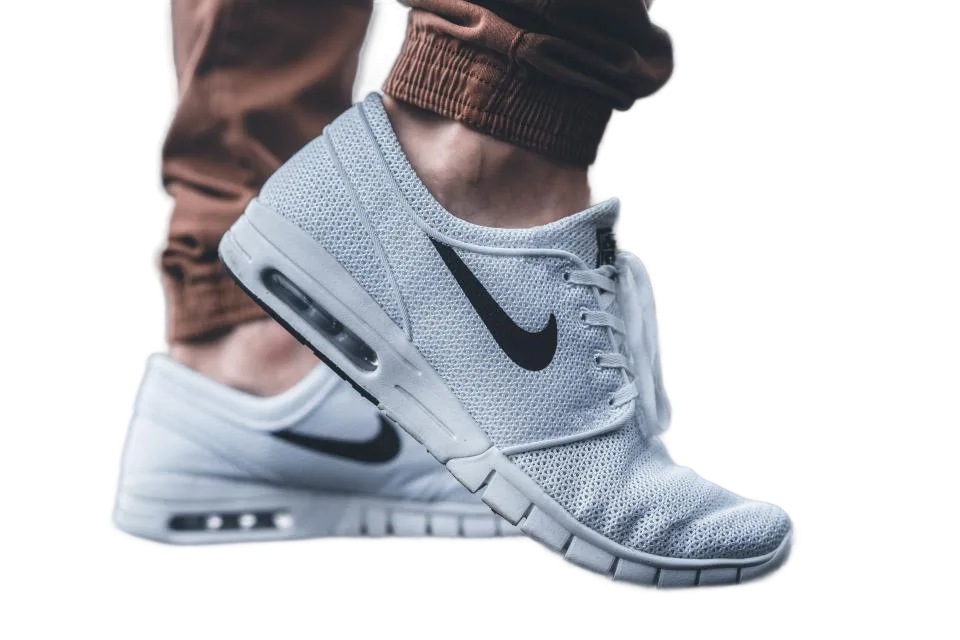
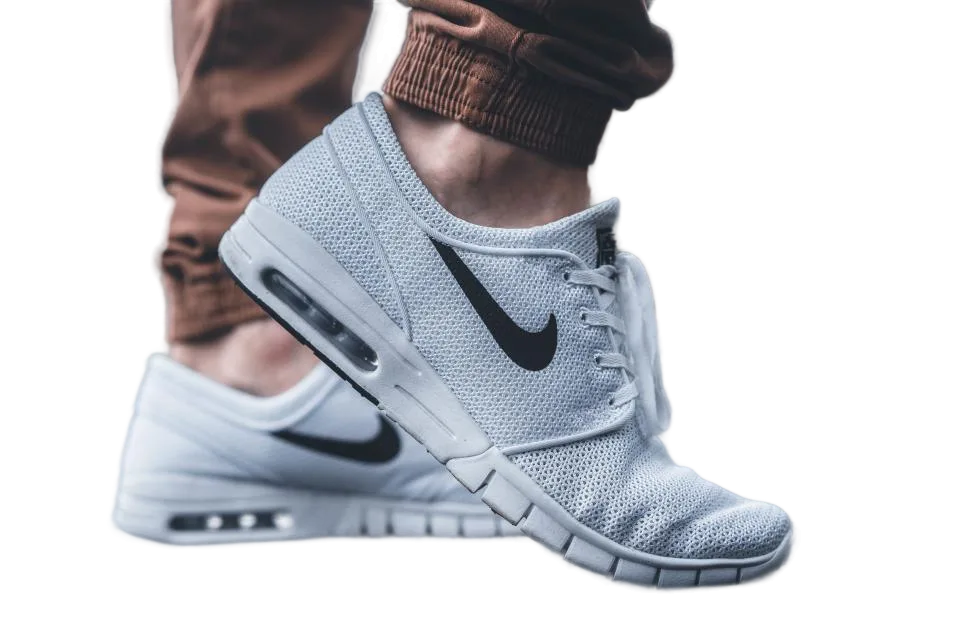
Sneaker cut-out on a orange backgroundOrange

1 · Subject

2 · Background

In the editor this is the Cutout studio: backgrounds, shadow, outline and ready-made sizes, all on the same cut-out.

Live demo01 / 06

02Edges

The hard parts, up close

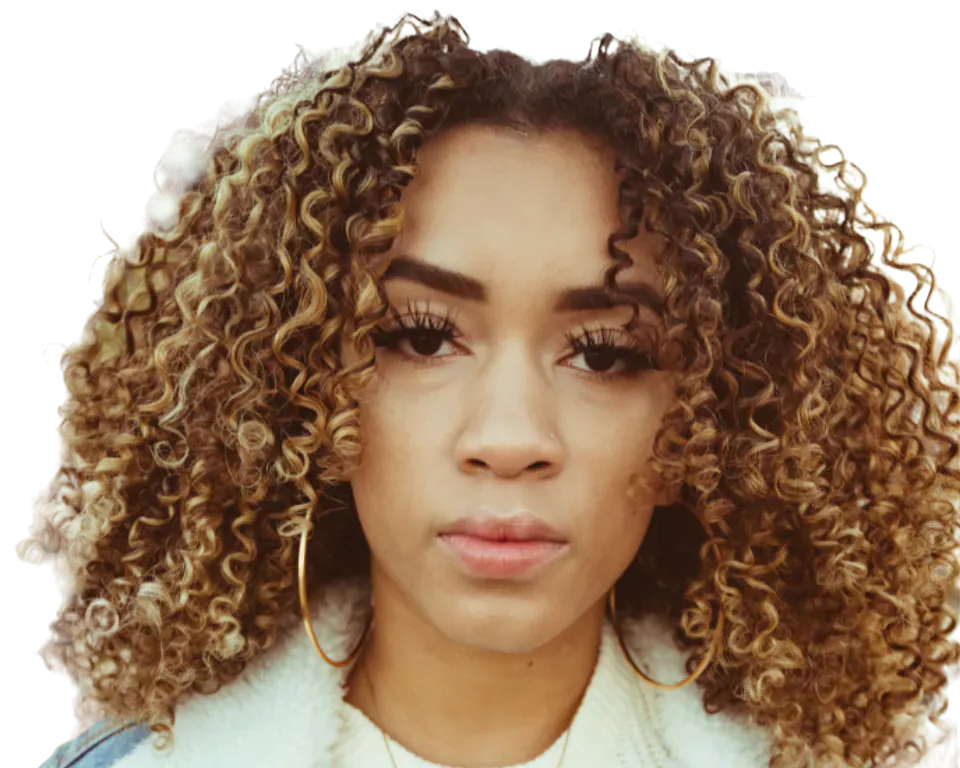
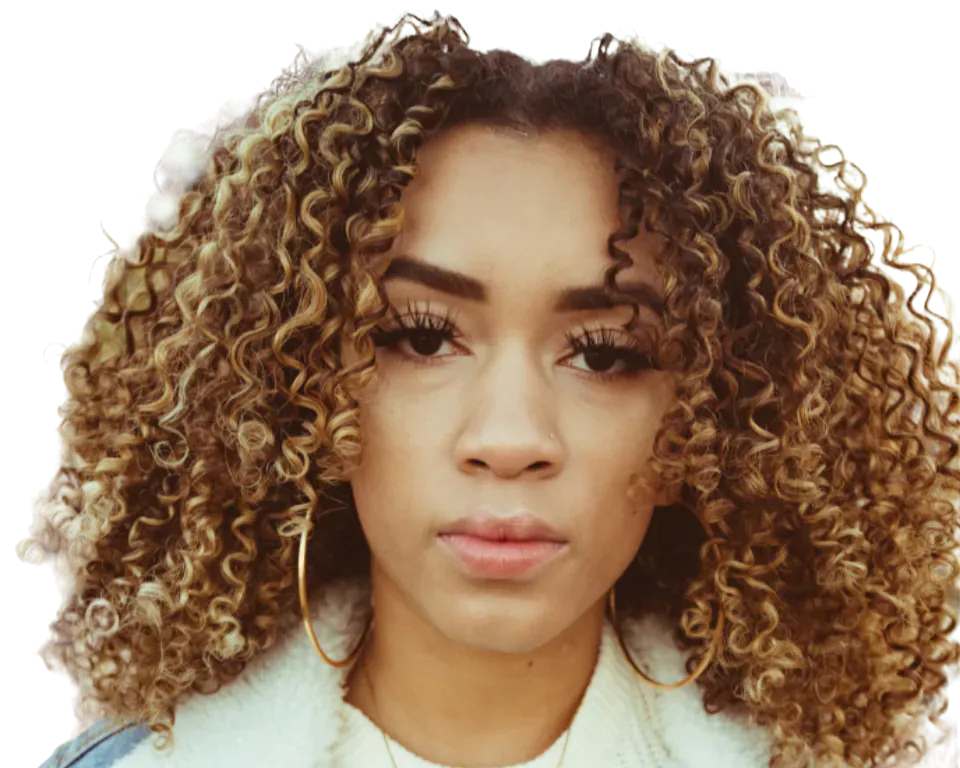
Zoomed to the pixels that usually go wrong, each one next to the photo it came from.

Live demo01 / 06

03How it works

Three steps. Seconds.

  1. 01Open your photoDrop a JPEG, PNG, WebP or HEIC (in Safari) photo.
  2. 02Click Remove backgroundThe AI cuts out the subject. Brush to fix anything it missed.
  3. 03Use it in CanvaDownload the transparent PNG and upload it to Canva like any other image.

04Why CutLift

Built to be the best one

  • Free and unlimitedBackground removal is on CutLift’s free plan, with no credit limit and no watermark.
  • Works with any design toolA transparent PNG drops into Canva, Google Slides, PowerPoint or Figma without a white box.
  • Fix the edges yourselfBrush, eraser and edge tools let you correct the cut-out before you design with it. Hair and fur refinement is Pro.
  • PrivateThe photo is processed on your device and never uploaded.

Free and unlimited. CutLift Pro adds batch processing, upscaling, sky replacement and studio exports for $7.99/month.

05The guide

Cut out here, design in Canva

Why people look for a Canva background remover alternative

Many designs start with a cut-out: a product on a coloured banner, a portrait on a social post, a pet on a birthday card. People who build those designs in Canva often search for a free way to remove the background first, or need to cut out more photos than they want to pay for.

CutLift is a free browser editor built around that step. Open the photo, click Remove background, and the AI finds the subject. Removing backgrounds is on the free plan with no credit limit, and the transparent PNG you download has no watermark.
How to use the cut-out in Canva

Download the result as a transparent PNG. In Canva, open Uploads, upload the file and drag it onto your design: it sits on top of any background without a white box. The same PNG works in Google Slides, PowerPoint, Figma and almost every other design tool.

If the AI leaves a strap behind or takes a hand away, brush the area back in or erase it before you download, then refine and feather the edge. Soft hair and fur refinement is part of CutLift Pro and free to try while you edit.

Private, unlimited and quick

The cut-out is made on your own device, inside the browser tab, so the photo is never uploaded to a server. That matters for client photos, ID pictures and anything personal. There are no credits to run out, so the hundredth photo works like the first. For a whole folder at once, Batch background removal is part of CutLift Pro.

Tips for clean cut-outs

Start from the largest photo you have: more pixels give the AI more detail around hair, fingers and fabric. A subject that stands out from its background cuts out best. After the cut-out, zoom in on the edge and brush away any leftover background, then download. For a product on white, choose a white backdrop in Cutout studio instead of a transparent PNG, and the image is ready for a marketplace listing as well as for Canva.

07Questions

Good to know

How do I get a transparent PNG into Canva?

Remove the background here, download the PNG, then in Canva choose Uploads, upload the file and drag it onto your design.

Remove backgrounds free, then design in Canva

Free to start. Your photo never leaves your device.

Open the editor

70 more tools

Keep going