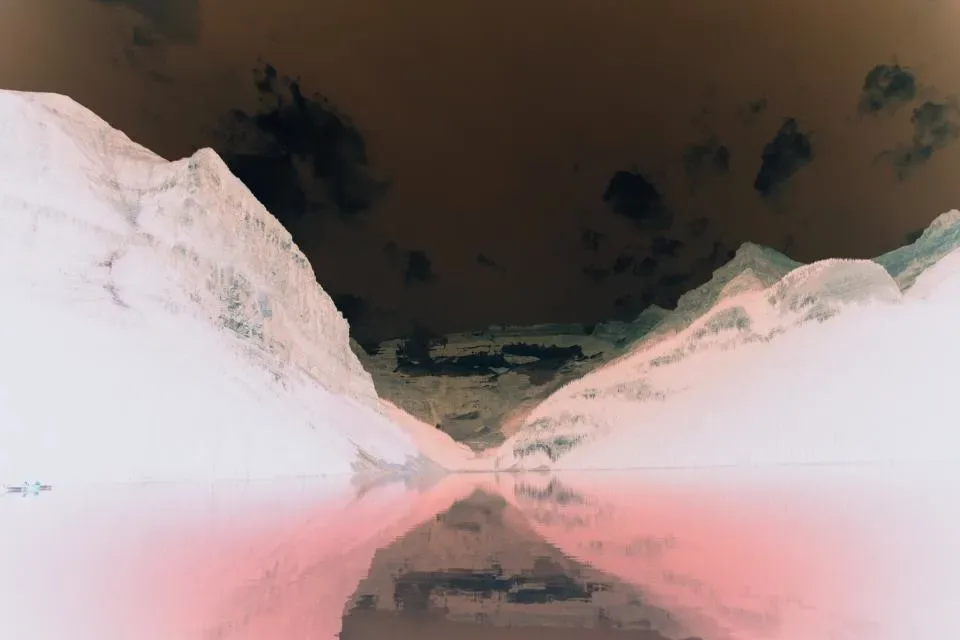
FreeInvert colours

Invert the colours of an image

Make a photo negative, turn a black logo white for a dark background, or flip a scan. Transparency is kept. Free, instant and private.

  • No upload
  • No watermark
  • Batch + ZIP
  • Free account
Need more? Open the full editor
imageInvert colours

or drop them anywhere on this page · up to 100 at once · paste works too

03How it works

Three steps. Seconds.

  1. 01Add your imagesDrop one or many on the box, choose them, or paste one with Ctrl or ⌘ + V.
  2. 02Colours flip at onceBlack becomes white, blue becomes orange; see-through areas stay see-through.
  3. 03DownloadSave each image, or all of them as one ZIP.

04Why CutLift

Built to be the best one

  • Logos for dark modeTurn a dark logo light in one step, transparency kept.
  • Film-negative lookEvery colour becomes its opposite, like a negative.
  • Many files at onceDrop up to 100 images together and download them one by one or as a single ZIP.
  • Nothing is uploadedThe conversion runs in your browser, on your device. Your pictures never reach a server.

Free and unlimited. CutLift Pro adds batch processing, upscaling, sky replacement and studio exports for $7.99/month.

05The guide

Colours turned inside out

What inverting an image does

Inverting replaces every colour with its opposite: black becomes white, blue becomes orange, green becomes magenta. The photo looks like a film negative. It is a quick way to make a striking artistic image, to check a design’s contrast, or to turn a dark logo or line drawing into a light one for a dark background.

Drop an image and the colours flip at once. Transparent areas stay transparent, because only the colour of each pixel changes, never its see-through amount.
Logos, scans and dark mode

A black logo on a transparent PNG becomes white in one step, ready for a dark website header or a dark slide. A scan of black text on white becomes white text on black, which some people find easier to read at night. Inverting the result again returns the original colours exactly.

To turn a scanned film negative into a photo, invert it here first; colour negatives also carry an orange tint from the film base, which you can correct afterwards with Curves or Colour balance in CutLift.

Batches, formats and privacy

Drop up to 100 images, download each one or a ZIP, and every file keeps its own format. Everything runs in your browser on your own device, so nothing is uploaded. Converting is free with no watermark, and a free CutLift account unlocks the downloads. It works on iPhone, Android and computers with no app.

Inverting in the editor

Click Edit on a result to keep working on it in the CutLift editor. Its Convert panel has Invert colours with a live preview, next to borders, rounded corners, pixelate and watermarks, so you can invert a picture and finish it in one pass. The preview shows exactly what the download will be, and the panel saves PNG, JPG, WebP, a PDF or a favicon.

Inverted logos often look best with a little padding: add a thin border in the same panel if the edges feel cramped.

07Questions

Good to know

How do I invert the colours of an image?

Drop it on the box above. The colours flip at once; click Download to save it.

Invert the colours of an image

Free to start. Your photo never leaves your device.

Open the editor

70 more tools

Keep going