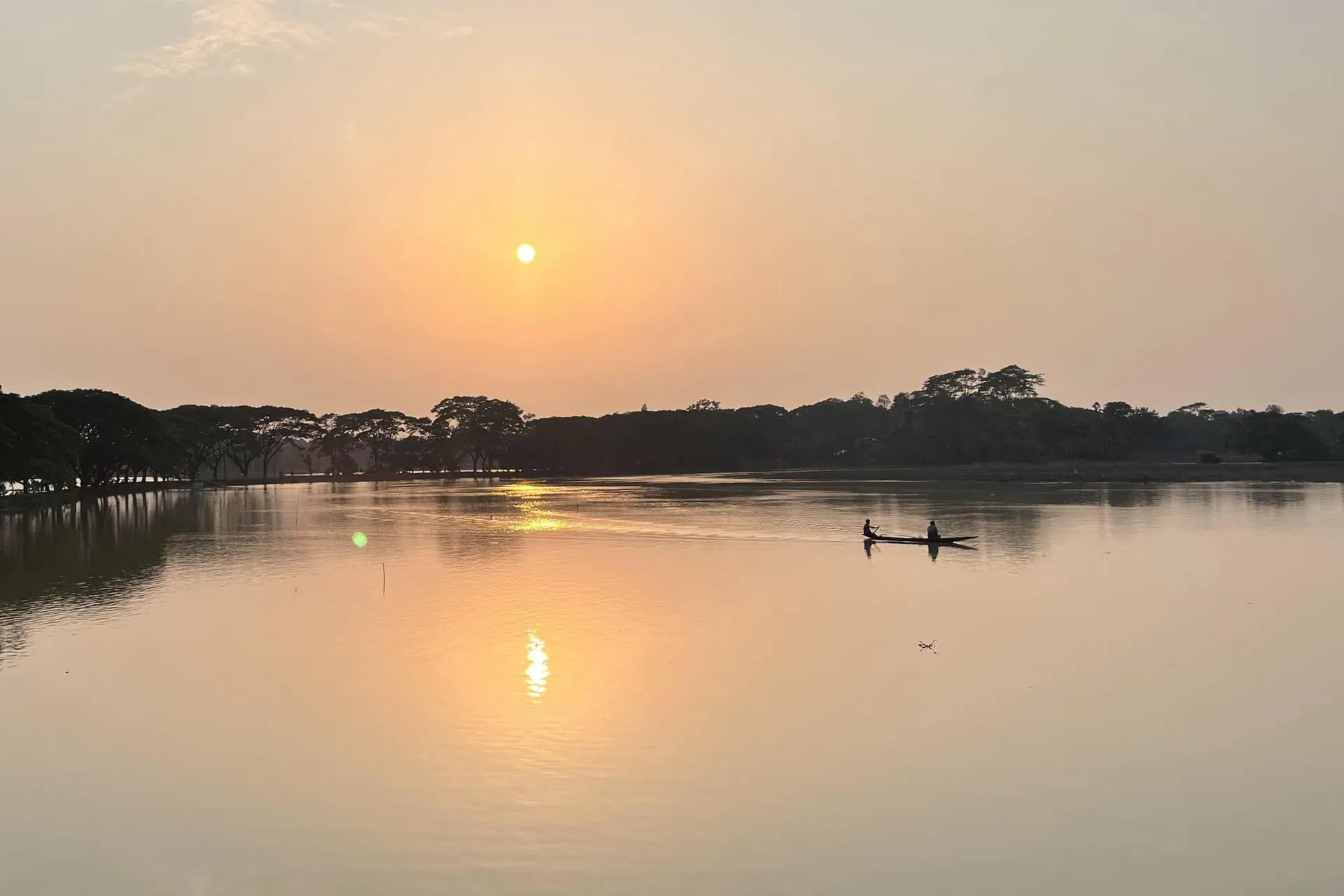
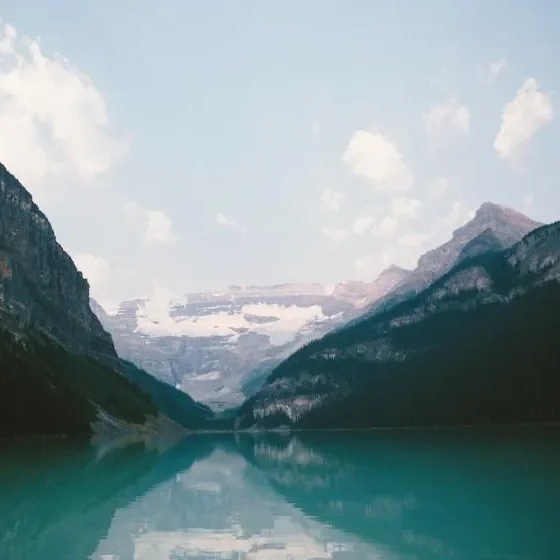
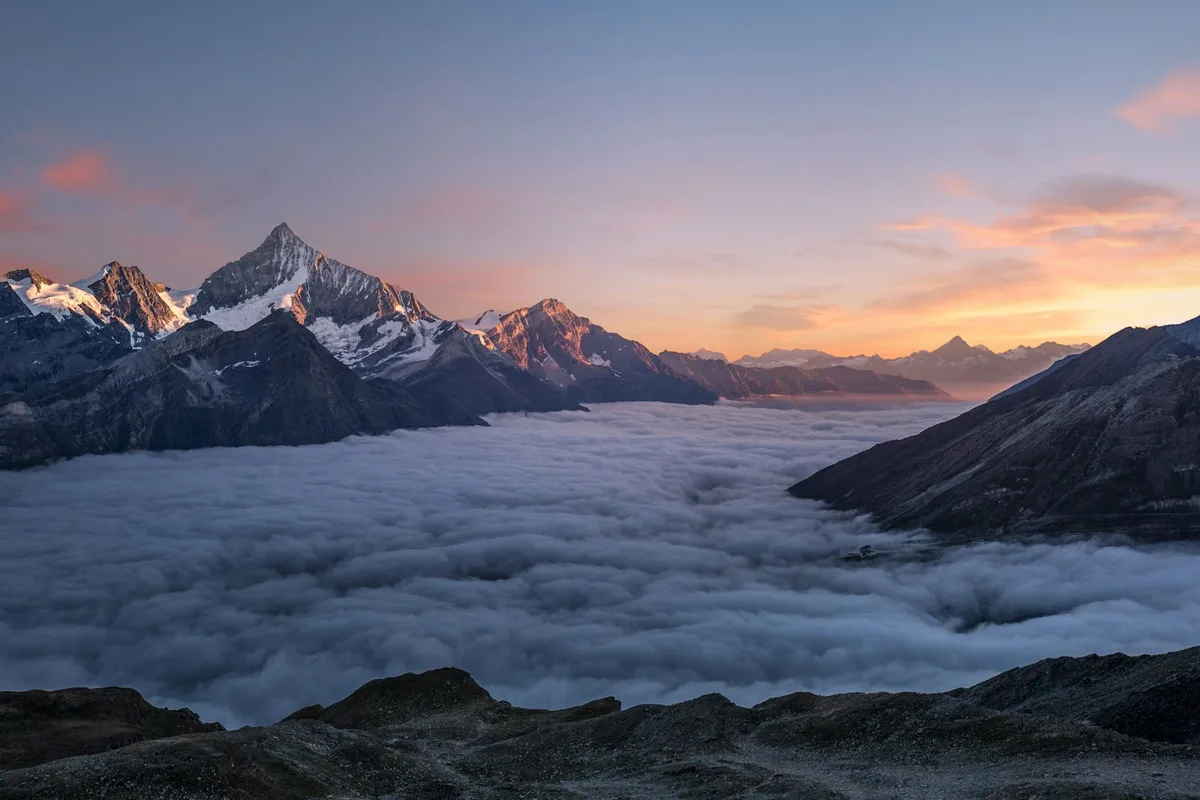
Most crooked photos come from holding a phone at a slight angle. A sloping sea or lake horizon is the most obvious, but a tilted photo shows just as clearly in a doorway, a shelf, a building edge or a picture frame on a wall. To straighten a crooked photo, choose the longest straight line you can find that should be level or upright, because a longer line gives a more accurate angle.
Use the true horizon rather than a shoreline or a hill, which may really slope.
For upright subjects, drag along a vertical edge such as a door frame or the corner of a building instead. CutLift turns the photo so that line stands straight.
After the Ctrl-drag (⌘ on a Mac), you can adjust the result by hand. Drag outside the crop box to rotate freely, or hold Shift while rotating to snap to 15° steps. The Angle field in the options bar takes an exact number of degrees, useful when you want several photos turned by the same amount.
You can also set a crop Ratio while straightening, by typing a width and height, and use Swap width and height to change between portrait and landscape.
A photo that opens on its side needs a quarter turn rather than straightening. Use the Image menu for Rotate 90° clockwise or anticlockwise, Rotate 180°, or Flip horizontal and Flip vertical for a mirrored selfie or scan.
A photo of a tall building can also look like it leans backwards; that is perspective, not tilt, and straightening alone will not remove it.
Fix the orientation first, then straighten, so the crop box and the angle you draw follow the photo the right way up.
Straightening is on the free plan, and the photo straightener runs on your device, so nothing is uploaded. Image size in the Image menu shows the new dimensions after the crop, and you can keep editing before you save the result.
Straightening trims a little from each edge, so leave some space around the subject when you take the photo. If a part you need is lost, undo the step, use a shorter line or a smaller angle, and try again.