FreePerson remover

Remove people from a photo

Tourists in the background, a stranger at the edge of the frame, or a friend you no longer want in the shot: paint over them and CutLift fills the space with matching background. Free, and your photo never leaves your device.

Drop your photo hereIt opens in the editor. Nothing is uploaded. Choose a photoJPGPNGWebPHEICPSDRAW

No photo? Try ours

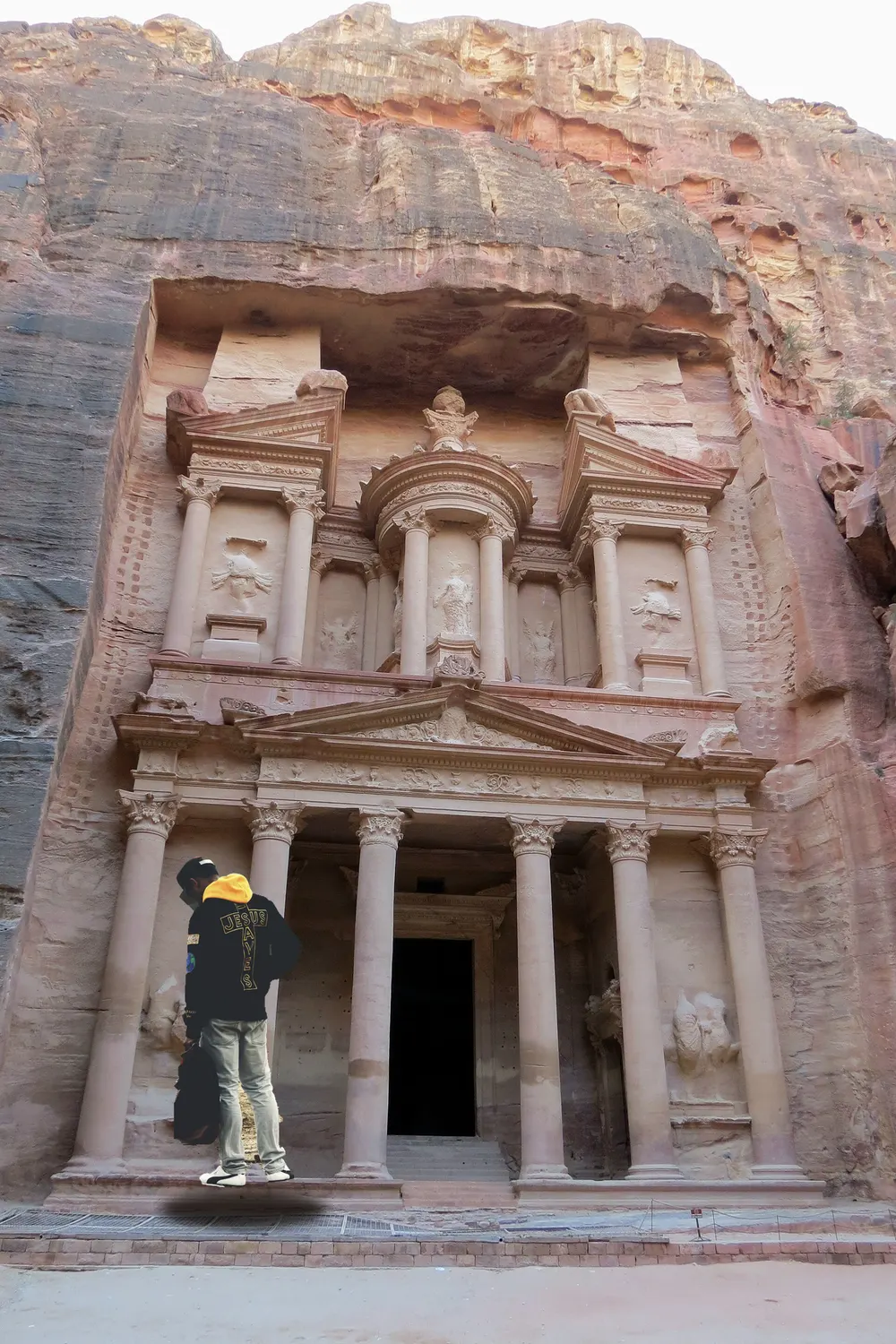
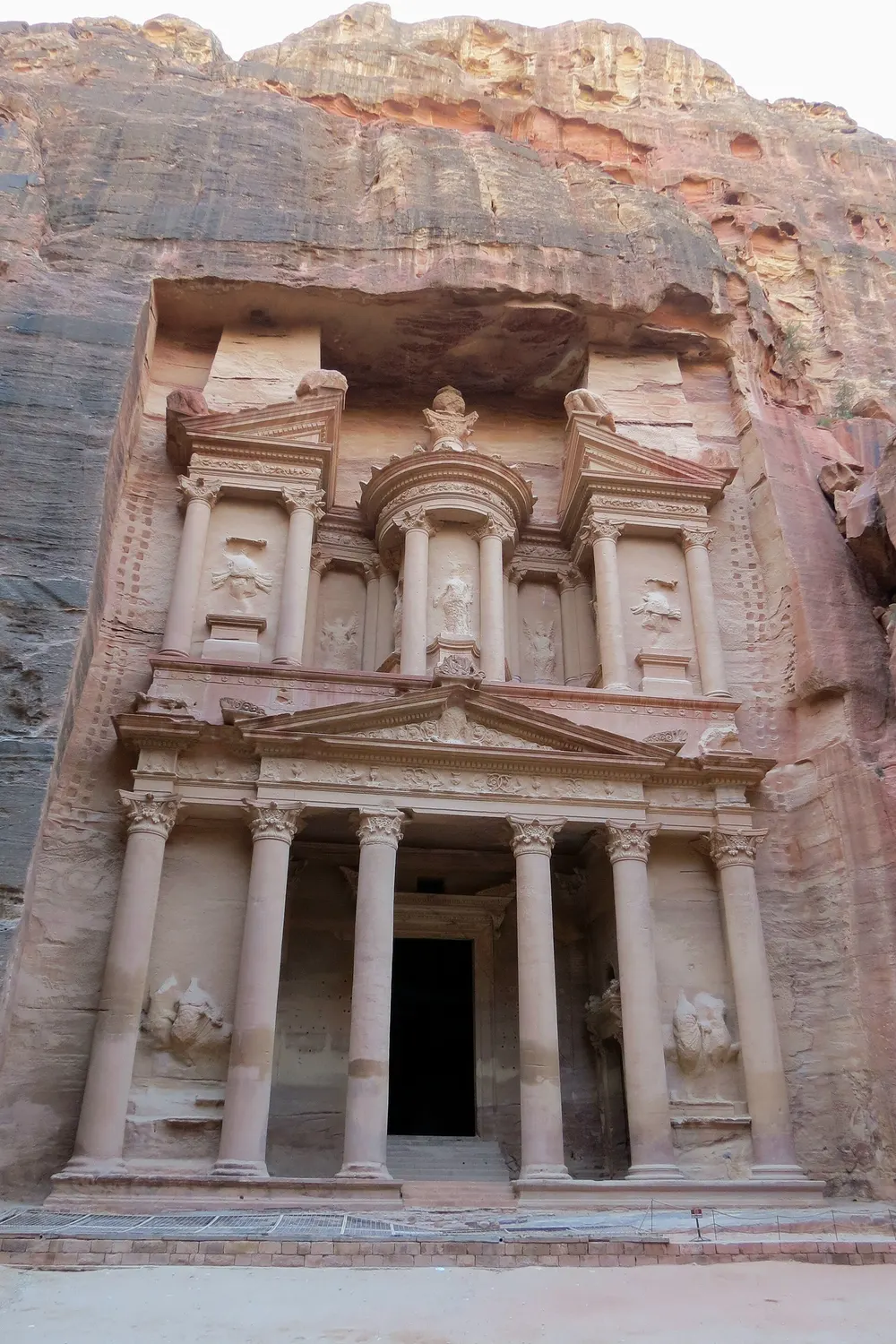
A sandstone temple facade with a visitor standing in front of itOriginal
Live demo01 / 04

01The shadow check

Paint the shadow too.

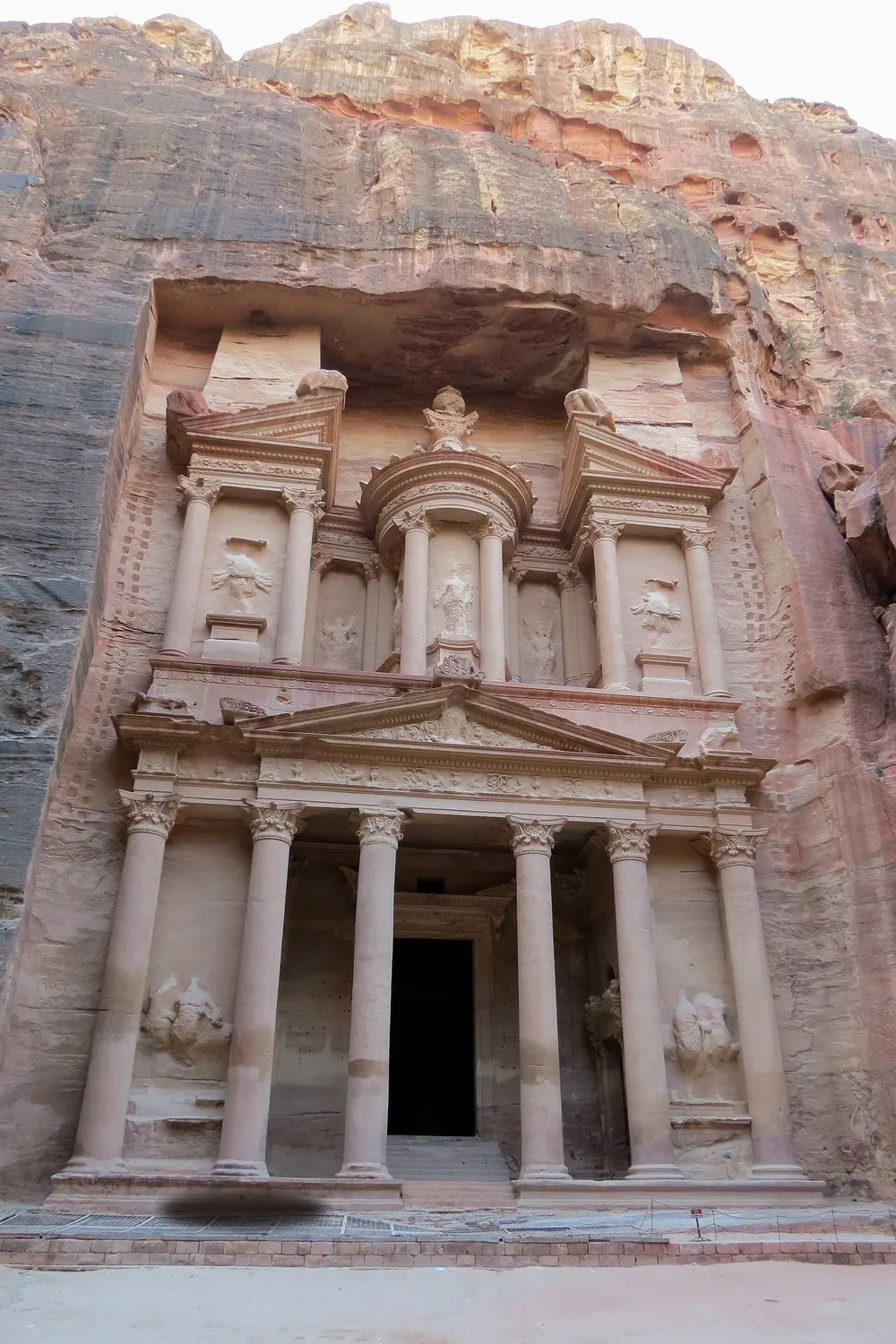
A visitor casts a shadow on the steps. Paint only the person and a dark patch stays on the stone. Include the shadow in the stroke and the ground is clean.

Zoomed pavement with the visitor's shadow still on the stoneShadow left behind
Live demo01 / 02

03How it works

Three steps. Seconds.

  1. 01Open the photoAny JPEG, PNG or WebP photo from your phone or camera.
  2. 02Paint over the personCover them with the brush, and include their shadow so nothing is left behind.
  3. 03Let goThe AI fills the space with matching background as soon as you let go. Download, or keep editing.

04Why CutLift

Built to be the best one

  • Crowds and strangersHold Shift to paint several people at once, then press Shift + Enter once.
  • Background that fitsThe fill is built from the scene around the gap, so the picture looks like they were never there.
  • Touch-ups afterTidy any leftover edge with the healing brush or clone stamp.
  • PrivateRetouching runs in your browser, so the file never leaves your device.

Free and unlimited. CutLift Pro adds batch processing, upscaling, sky replacement and studio exports for $7.99/month.

05The guide

Clear the scene

Travel shots, crowds and photobombers

Popular places are rarely empty. You can remove tourists from a photo of a landmark, erase a person walking through the edge of a beach shot, or delete people from a photo of a street so the buildings stand out. The same tool takes out a stranger behind a family portrait or a person who should no longer be in a group picture.

Results are best when the person covers a modest part of the frame. Removing someone who fills half the picture leaves the AI with a large gap to invent, and the fill is more likely to need touching up.

How to paint for a clean fill

Paint a little wider than the person, so no outline of their hair or clothes is left behind. Include their shadow on the ground and any reflection in water or glass; a shadow with no one casting it gives the edit away.

Keep the brush size close to the size of the person. The Size slider and the [ and ] keys change it as you go, so you can paint a distant figure with a small brush and a nearby one with a large brush.

For a large crowd, work in steps. Remove the people furthest away first, then the nearer ones, so each fill has clean background around it to draw from. Hold Shift to paint several separate people before pressing Enter once.

When the background is complex

Grass, sand, sky, water and plain walls fill well. Straight lines such as railings, tiles or window frames are harder. Use the Clone Stamp (press S) with Aligned on to continue a line by hand, and the Healing Brush to blend the join into the colours around it.

If a person stands in front of something detailed, try Generative fill (Pro) in the Edit menu on the same selection, which creates new content for the gap. Compare before / after in the View menu shows the original next to the result.

Free and on your device

Remove object is on the free plan, with no limit on how many people you take out. Every step can be undone. The photo person remover runs on your device, so pictures of family, friends and children are not sent anywhere. When you are done, download the photo, or save the project and carry on later.

06Questions

Good to know

Can I remove a person from a photo for free?

Yes. Remove object is on the free plan. Paint over the person and their shadow, then let go.

Remove people from a photo

Free to start. Your photo never leaves your device.

Open the editor

49 more tools

Keep going