FreeImage labelling

Label the objects in your photos

Pick out each thing you want a model to learn, name it, and move on. Labels are kept in one place, and nothing you label is sent to a server.

Drop your photo hereIt opens in the editor. Nothing is uploaded. Choose a photoJPGPNGWebPHEICPSDRAW

No photo? Try ours Keys 1 to 9 work on a keyboard too.

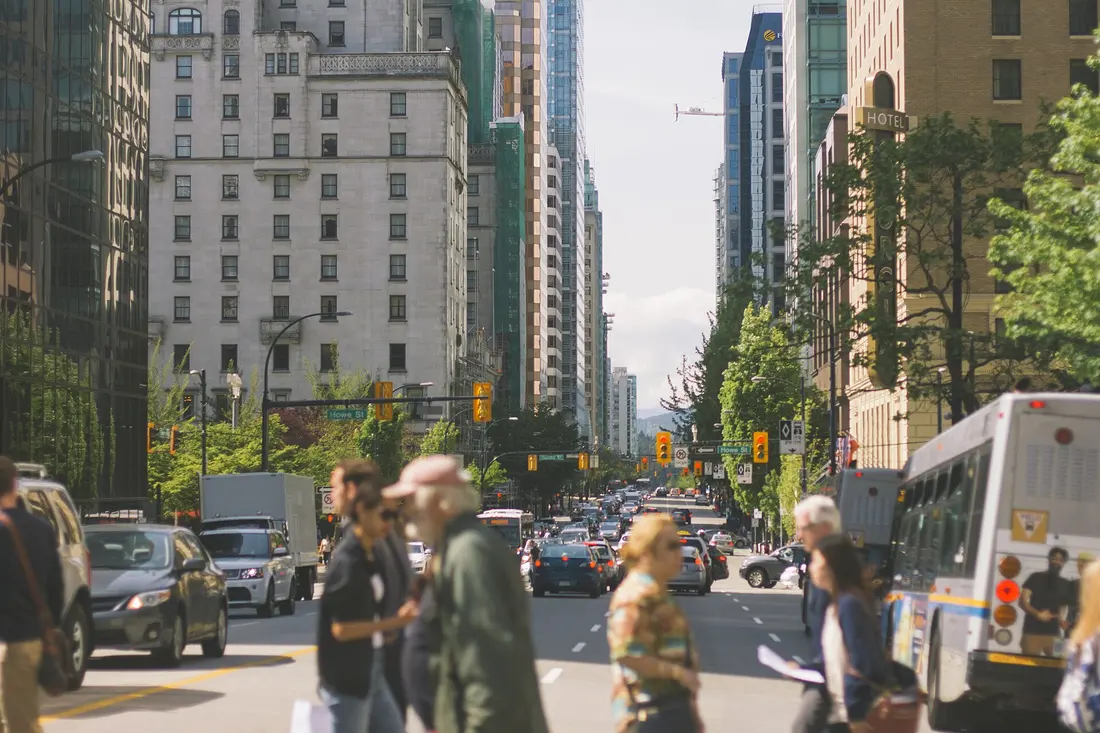
A city crosswalk with the people and cars boxed and labelled

Class keys

Pick a box, then press its key. Keys stay put from one photo to the next.

Live demo01 / 06

02Keys, then chips

One key, one class.

The number you press is the class. Label a crowd in a few taps, and every chip on the tape carries the key it came from.

123

Keys 1 and 2 are shown. Add more classes as you need them.

03How it works

Three steps. Seconds.

  1. 01Open a photoStart with any image: a camera shot, a screenshot or a frame from a video.
  2. 02Pick an objectTrace its edge with a lasso, Quick Selection or the Pen, or click it for AI select (Pro).
  3. 03Give it a labelType a class name such as “person” or “car”, or pick one you have already used.

04Why CutLift

Built to be the best one

  • Consistent spellingChoose a class from the class bar instead of retyping it, so every example uses the same name.
  • Select by nameType a class to select every matching object in the photo at once (Pro).
  • Local correctionsFixing one object never changes the mask of another, because each one has its own layer.
  • Exports for trainingMasks and PNG cutouts are free. COCO, YOLO and label maps are Pro exports.

Free and unlimited. CutLift Pro adds batch processing, upscaling, sky replacement and studio exports for $7.99/month.

05The guide

Names that stay consistent

Why class names matter

A model learns only what the labels tell it. If one photo says “car”, another says “Car” and a third says “cars”, a training script sees three classes. Most labelling mistakes in small datasets are of this kind, not badly drawn outlines. The class bar in CutLift is there to prevent them: you type a class name once, give it a colour, and from then on you pick it rather than retype it.
Labelling quickly with the class bar

The first nine classes have number keys. Select one or more layers and press 1 to 9 to label them, or press a number with nothing selected and every new object you mark takes that class. Select all of this class gathers every object with the same label, so you can check them together, and Colour layers by class paints each object in its class colour, which makes a mislabelled object stand out at a glance.

Rename or recolour a class at any time; the objects that use it follow. Classes can be reordered so the ones you use most sit under the first keys.

Tag objects in images, not just whole photos

This is a data labeling tool for objects: each label belongs to an outline, not to the photo as a whole. Pick each object with a lasso, Quick Selection or the Pen, or label many at once with Select by name (Pro), which selects every match for a word you type.

Labeling for machine learning at object level tells a model where each thing is, not only that it appears somewhere in the picture. Areas you do not label are simply background: they get no annotation in COCO and the value 0 in a label map.

From labels to training files

Labelled photos export as one mask per object and a Simple JSON for free. With Pro they also export as COCO JSON, YOLO segmentation labels or an index label map. Your class list carries over from photo to photo, so a class keeps the same id in every export of a set, and you can load an existing dataset’s classes.txt, data.yaml or COCO file to match its ids. Labelling is done in your browser, and nothing you tag is sent to a server.

06Questions

Good to know

What is image labeling?

Image labeling means writing down what each object in a picture is, such as “dog” or “bicycle”, so a computer vision model can learn from it.

Label the objects in your photos

Free to start. Your photo never leaves your device.

Open the editor

49 more tools

Keep going