FreeHeadshot

Change the background of a headshot

Swap a busy or dated backdrop for a plain, professional colour in a few clicks. Good for profile pictures, staff pages and CVs. Free, unlimited, and your photos never leave your device.

Drop your photo hereIt opens in the editor. Nothing is uploaded. Choose a photoJPGPNGWebPHEICPSDRAW

No photo? Try ours

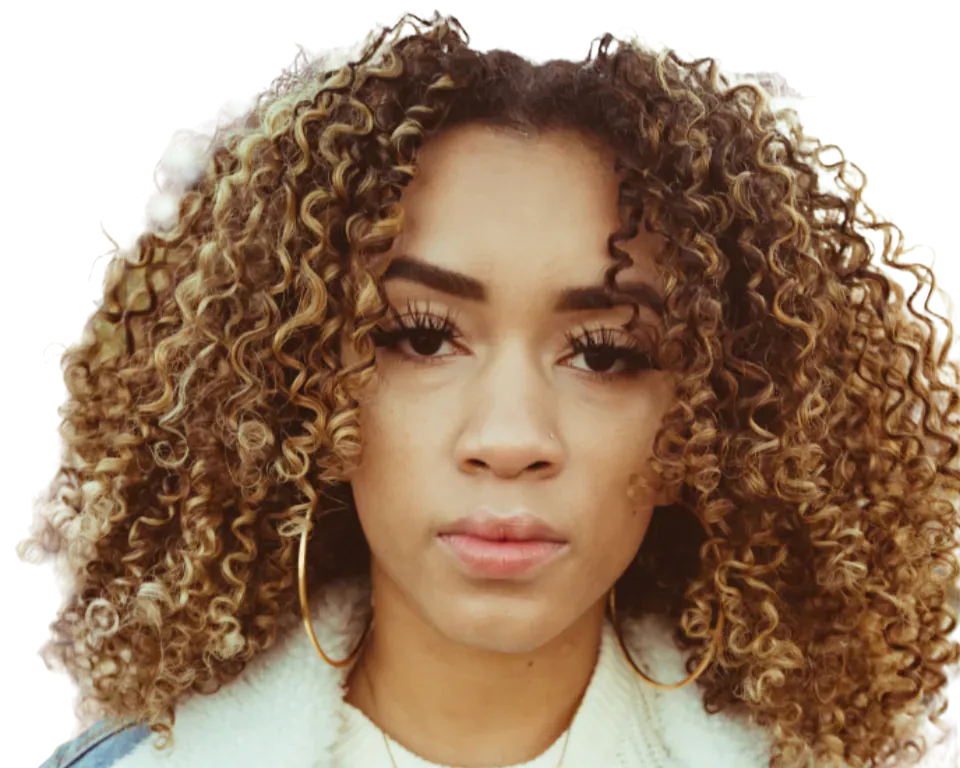
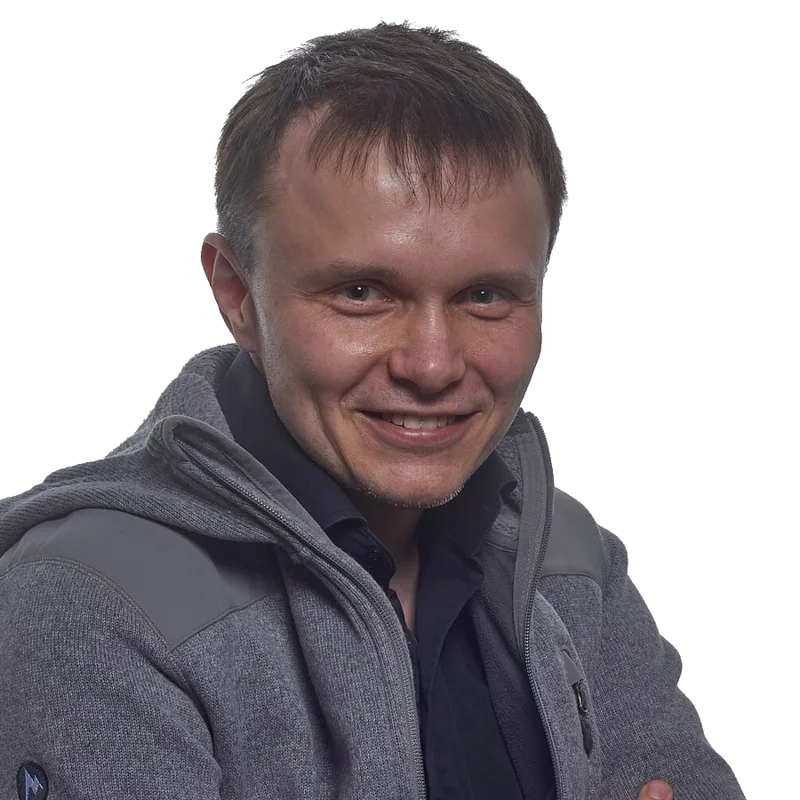
A smiling man in front of a light grey backgroundLight grey

Sam Rivera

Operations lead, Fernlight Studio

Background

Live demo01 / 04

01Profile picture

One photo, three sizes

A profile picture is seen big on your page and small in every comment. The same cut-out works at each size, so pick the colour once.

Profile photo
Comment
Chat

Photo backgrounds are part of CutLift Pro. Solid colours and gradients are free. Check the photo rules of the site you upload to.

03How it works

Three steps. Seconds.

  1. 01Open the headshotAny portrait photo, straight from your camera or phone.
  2. 02Remove the backgroundOne click cuts out the head and shoulders. Brushes tidy any edge the AI missed.
  3. 03Pick the new backgroundChoose a solid colour in Cutout Studio, then download a JPEG or PNG.

04Why CutLift

Built to be the best one

  • Hair and edgesHair & fur refinement (CutLift Pro) keeps fine hair from looking cut out. Brushes fix anything missed.
  • Any plain colourWhite, light grey, blue or a brand colour from the colour picker.
  • Free and unlimitedNo credits and no watermark.
  • PrivateThe AI runs on your device. Your photo is never uploaded.

Free and unlimited. CutLift Pro adds batch processing, upscaling, sky replacement and studio exports for $7.99/month.

05The guide

A cleaner headshot

Where a new backdrop helps

A good portrait taken in a kitchen, an office corridor or at a party can become a professional headshot once the background is replaced. A plain backdrop suits a LinkedIn profile picture, a company team page, a speaker bio, a CV or a dating profile. Changing the headshot background is also a quick way to make a set of staff photos taken in different places look like one series.
Choosing a professional headshot background

Light grey, soft blue and off-white are safe choices because they keep the eye on your face. A brand colour picked from your company logo can tie a team page together; choose it with the colour picker in Cutout Studio. Avoid a backdrop close to your hair or clothing colour, as the edge between them will be harder to read.

If you prefer a natural look, the Blur background option keeps the original scene but softens it, like a portrait lens. It is free. Placing yourself on a photo of an office or a wall is possible too, with the photo background option in CutLift Pro.

Hair, collars and shoulders

Hair is the part that gives a replaced portrait background away. After the cut, zoom in around the head and fix the collar and shoulders with the Brush and Eraser. For stray strands, Hair & fur refinement (CutLift Pro) gives soft, natural edges, and the Refine Edge Brush (press R, also Pro) applies it only where you paint.

In Cutout Studio, the Match background slider blends your colours and soft edges into the new backdrop, and Warmth and Brightness help when the original light was cooler or darker.

Shoulders cut off by the frame edge are fine; the cutout simply meets the edge of the new backdrop.

Sizes and privacy

The free Square size crops the portrait to 1 : 1, which fits most profile picture slots. The Profile photo look sets a fixed 400 × 400 canvas on light grey; fixed sizes are part of CutLift Pro, free to try and needed only for the download. This headshot background changer runs in your browser, so your face is never sent to a server.

06Questions

Good to know

How do I change the background of a headshot for free?

Open the photo, click Remove background, then open Cutout Studio and choose a solid colour. Download the result.

Change the background of a headshot

Free to start. Your photo never leaves your device.

Open the editor

49 more tools

Keep going