FreeRotate & straighten

Rotate and straighten any photo

Level a crooked horizon in one drag, rotate by any angle, turn by 90° or flip a mirror image. Free, unlimited, and your photos never leave your device.

Drop your photo hereIt opens in the editor. Nothing is uploaded. Choose a photoJPGPNGWebPHEICPSDRAW

No photo? Try ours

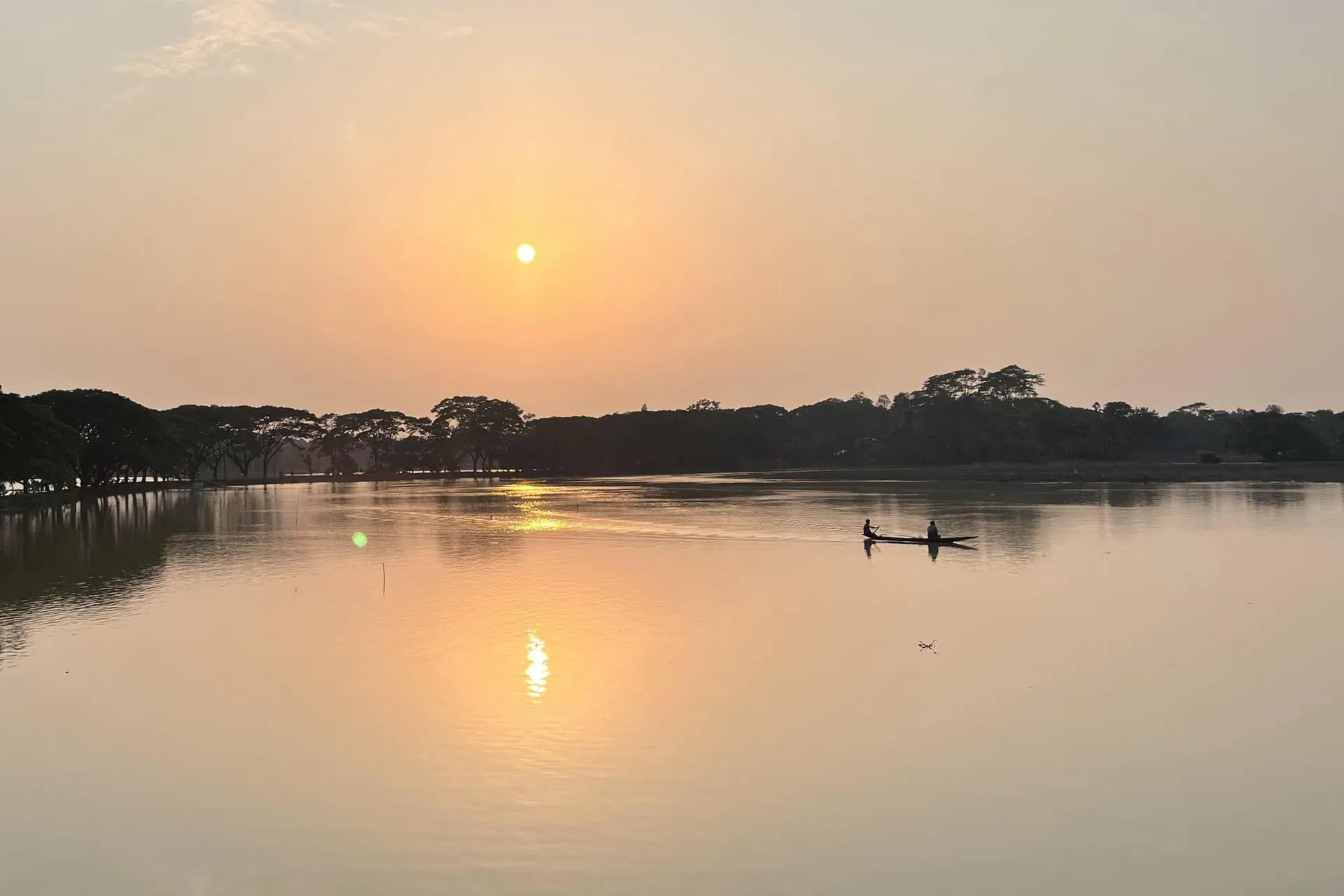
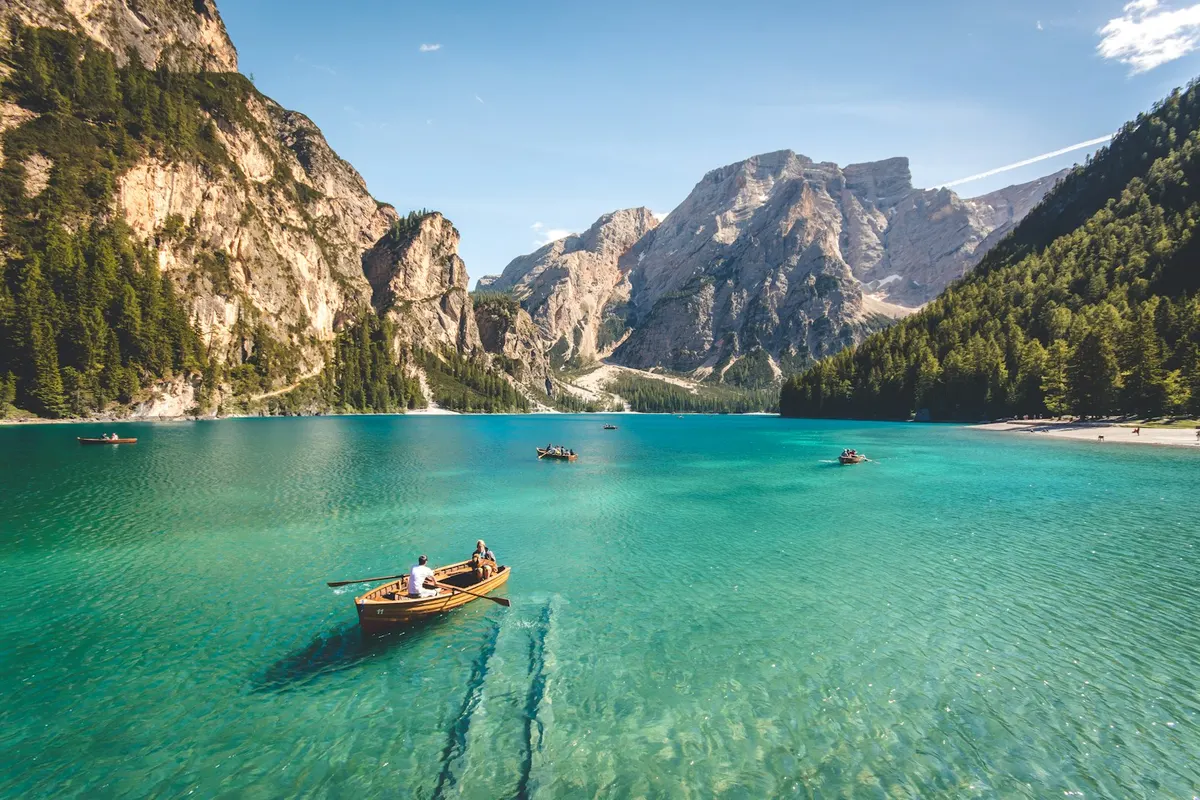
A tilted lake photo straightened so the horizon is level
0.0°
Level when the bubble sits in the middle
Live demo01 / 05

01Straighten

Draw the horizon. Done.

In the editor press C, hold Ctrl (⌘ on a Mac) and drag along anything that should be level or upright. The photo turns to match and the crop shrinks so no empty corners show.

C crop · Ctrl + drag straighten · Enter apply

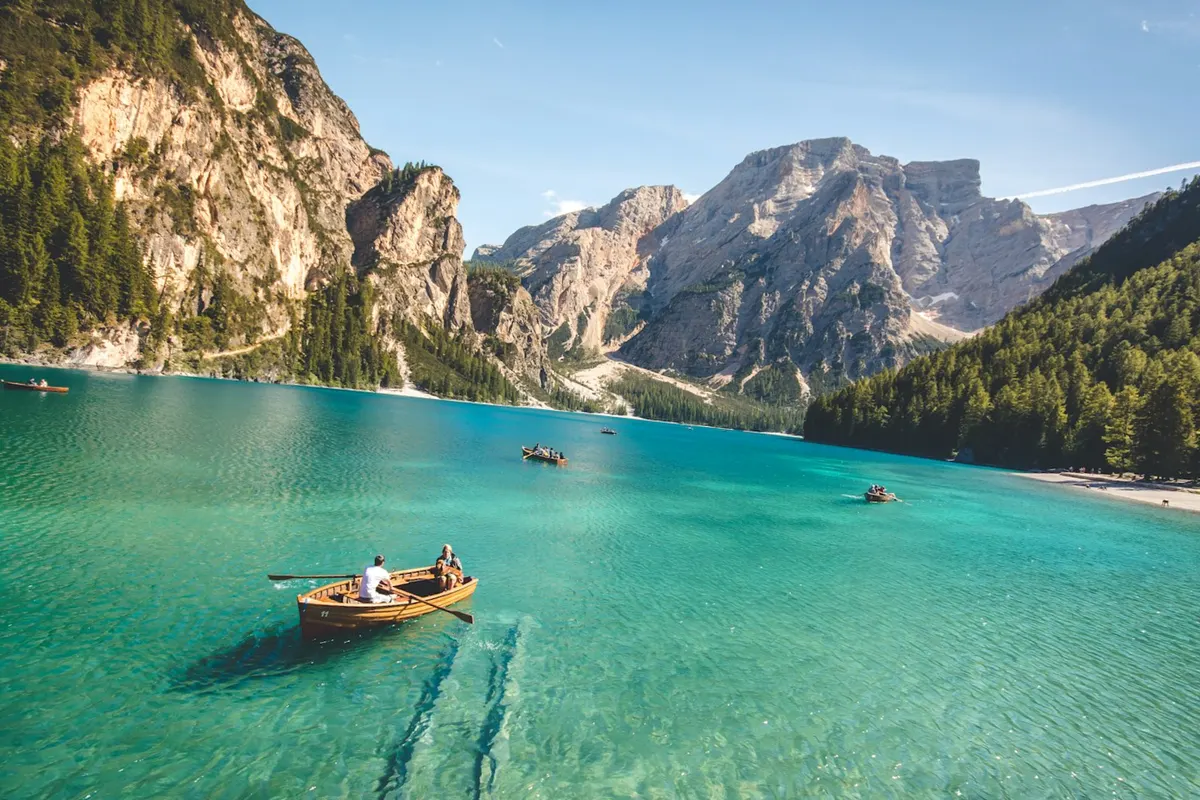
The tilted lake photo, ready to straightenLine along the shore = level
Live demo01 / 02

03How it works

Three steps. Seconds.

  1. 01Open a photoAny JPEG, PNG, WebP, HEIC (in Safari), PSD or RAW file.
  2. 02Straighten or rotatePress C, then hold Ctrl (⌘ on a Mac) and drag along the horizon. Or drag outside the crop box to rotate freely.
  3. 03Apply and savePress Enter. The crop shrinks to keep the corners filled. Save your project or a Photoshop (PSD) file to keep the layers.

04Why CutLift

Built to be the best one

  • Straighten in one dragDraw a line along a horizon or a wall and the photo turns until it’s level or upright.
  • Any angleDrag outside the crop box to rotate by hand, with no empty corners.
  • 90°, 180° and flipsImage ▸ Rotate 90° clockwise or anticlockwise, Rotate 180°, Flip horizontal and Flip vertical.
  • Layers come alongCut-outs and masks rotate with the photo, and every step can be undone.

Free and unlimited. CutLift Pro adds batch processing, upscaling, sky replacement and studio exports for $7.99/month.

05The guide

Getting photos level

Why photos end up tilted

Handheld shots often lean a degree or two, which you only notice when the horizon is a sea, a lake or a long building. Scanned prints come in slightly crooked, some phone photos arrive sideways, and selfies are mirrored. Each has its own fix in CutLift, and all of them are free. Levelling is usually the first edit to make, before you crop to a final ratio.

Straighten a photo and fix a tilted horizon

Press C for the Crop tool, then hold Ctrl (⌘ on a Mac) and draw a line along the horizon, or click Straighten in the options bar and draw the same line. The photo turns until that line is level. It works on vertical lines too: draw along a door frame, a lamp post or the side of a building and it becomes upright.

Choose a line that really is level in the scene. A sea horizon is reliable; a shoreline, a road or a roof seen at an angle often isn’t.

Rotate an image by degrees

To rotate by an exact amount, type it in the Angle field of the options bar. To rotate the picture by eye, drag outside the crop box; holding Shift snaps the angle to 15° steps. The crop shrinks to stay inside the photo, so there are no white or transparent corners. Pick a Ratio first if the result must stay square or 16 : 9, then press Enter or double-click to apply, or Esc to reset.

Quarter turns, flips and mirror images

Image ▸ Rotate 90° clockwise, Rotate 90° anticlockwise and Rotate 180° fix a picture that came in sideways or upside down, without cropping anything. Flip horizontal makes a mirror image, the usual fix for front-camera selfies and for writing that reads backwards; Flip vertical turns the photo upside down as a reflection.

Layers, cutouts, text and other edits rotate and flip with the photo in one step, and one undo puts it back. When you rotate a photo online here it stays in your browser and isn’t uploaded. Save a project or a Photoshop (PSD) file to keep the layers.

06Questions

Good to know

Is it free to rotate images?

Yes. Rotate, straighten and flip are all on the free plan.

Rotate and straighten any photo

Free to start. Your photo never leaves your device.

Open the editor

49 more tools

Keep going