FreeCurves

Shape the light with Curves

Drag a point on the curve to lighten shadows, deepen contrast or give a faded matte look, on all channels or just red, green or blue. Free, unlimited, and your photos never leave your device.

Drop your photo hereIt opens in the editor. Nothing is uploaded. Choose a photoJPGPNGWebPHEICPSDRAW

No photo? Try ours or press Ctrl M

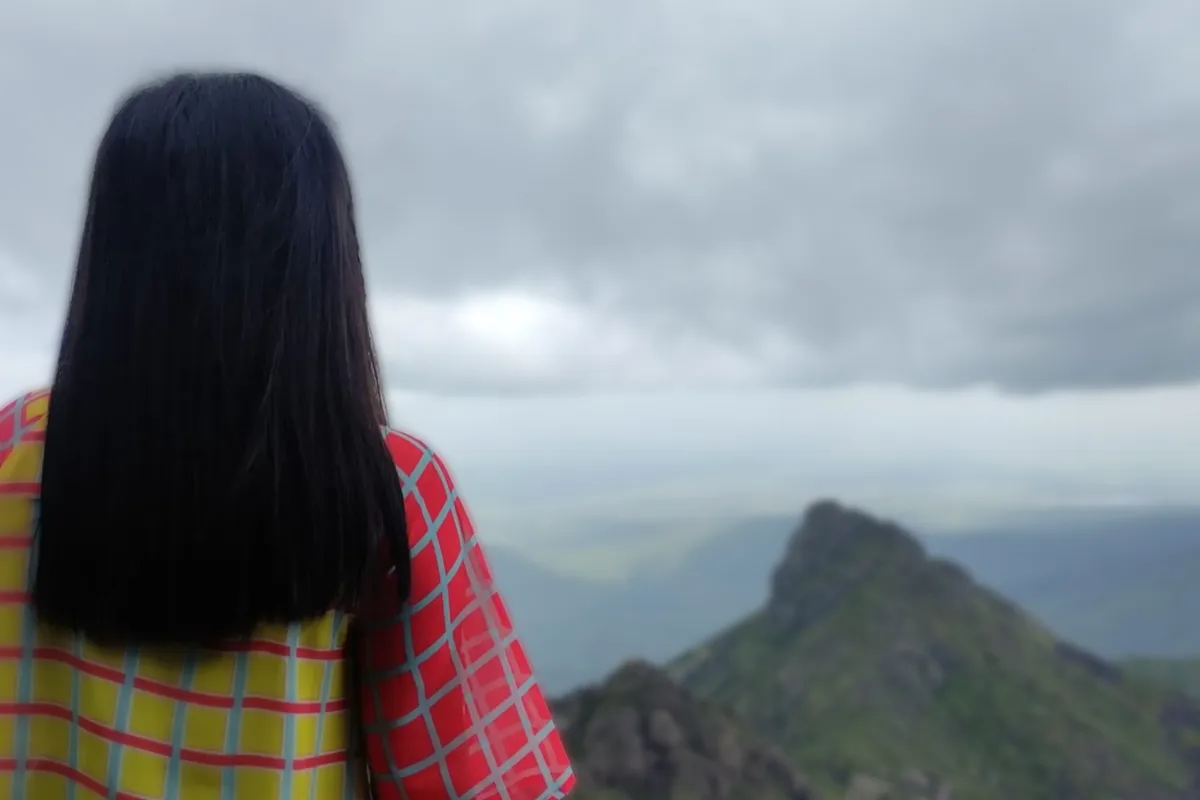
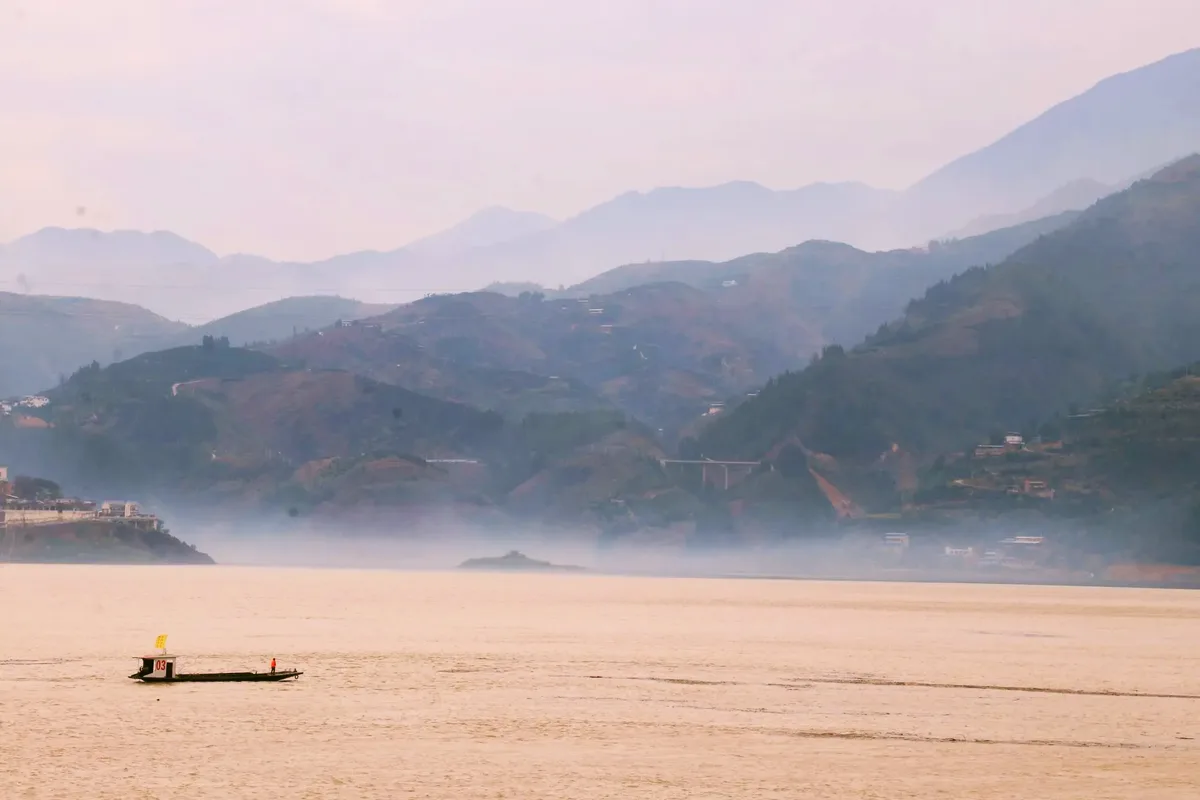
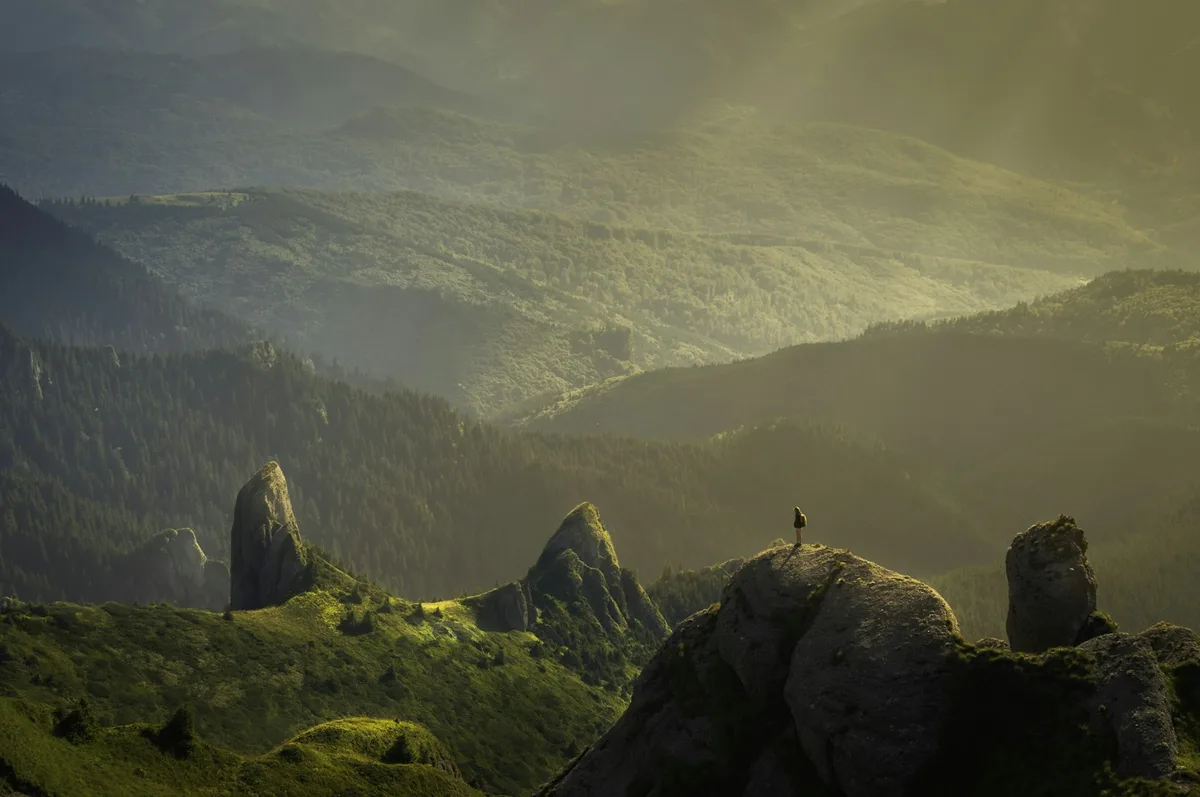
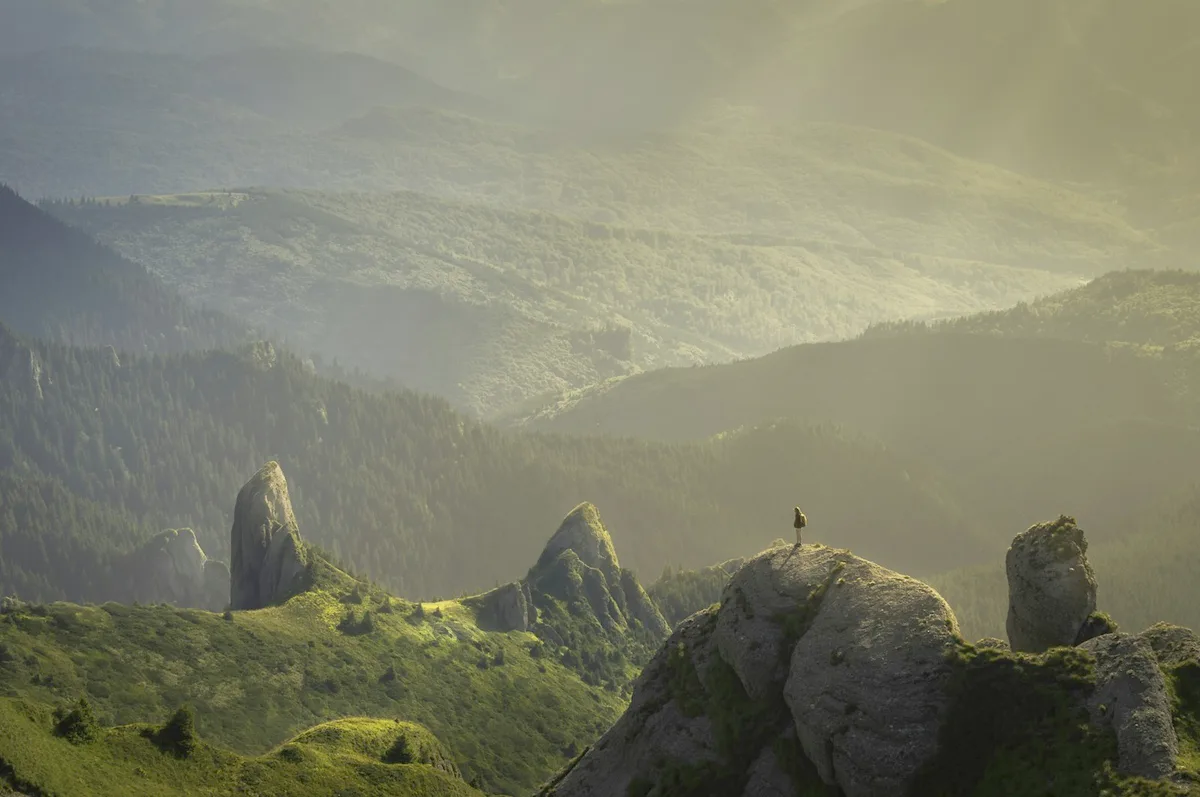
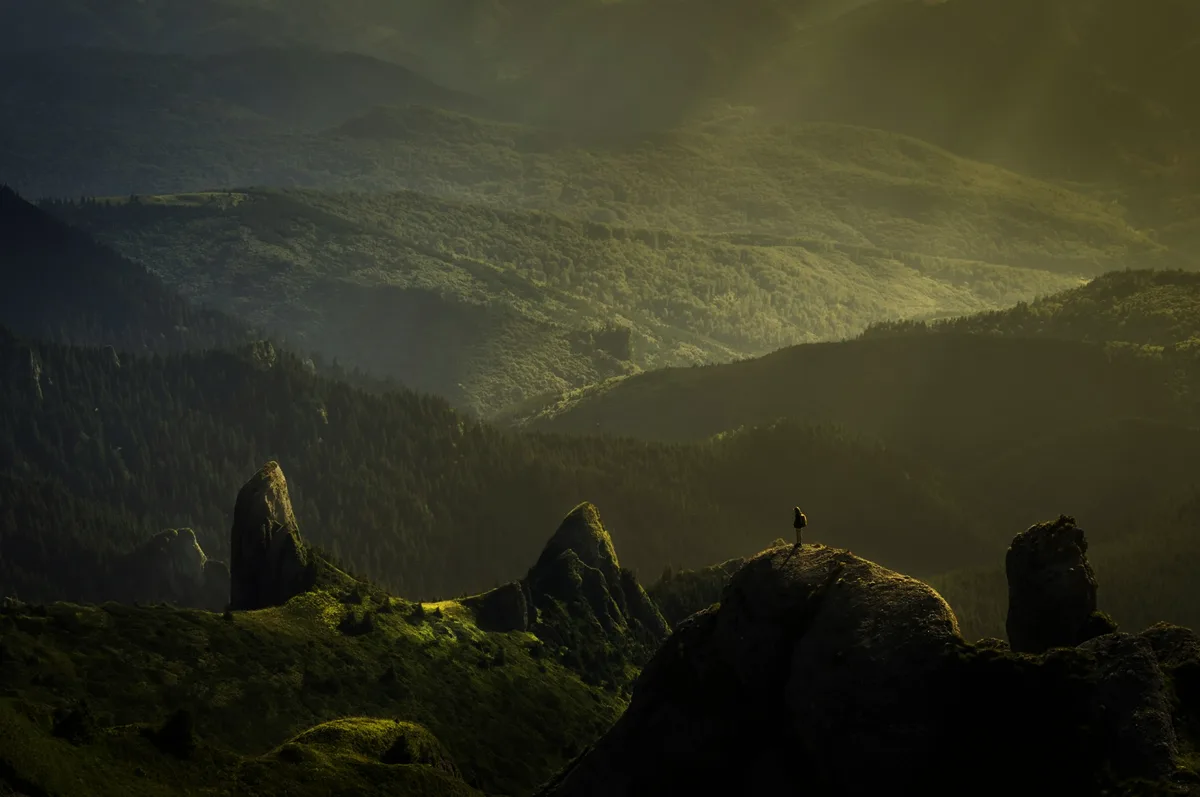
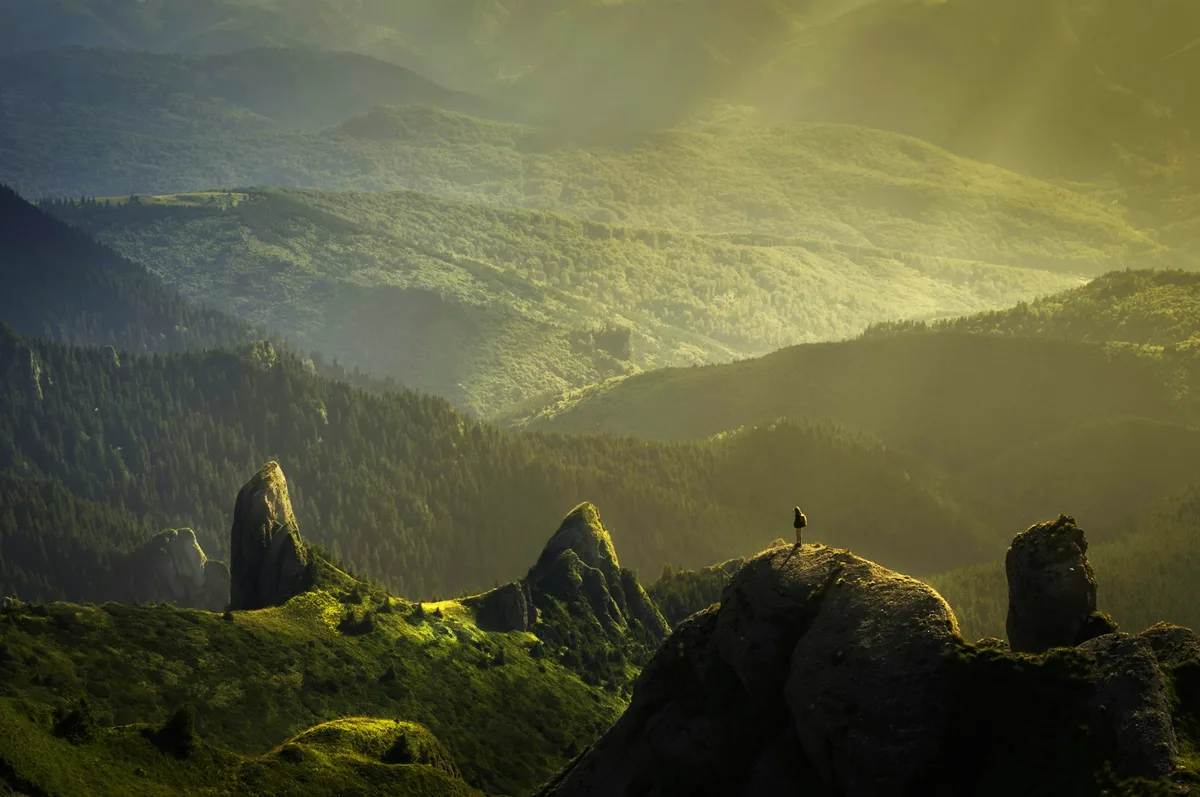
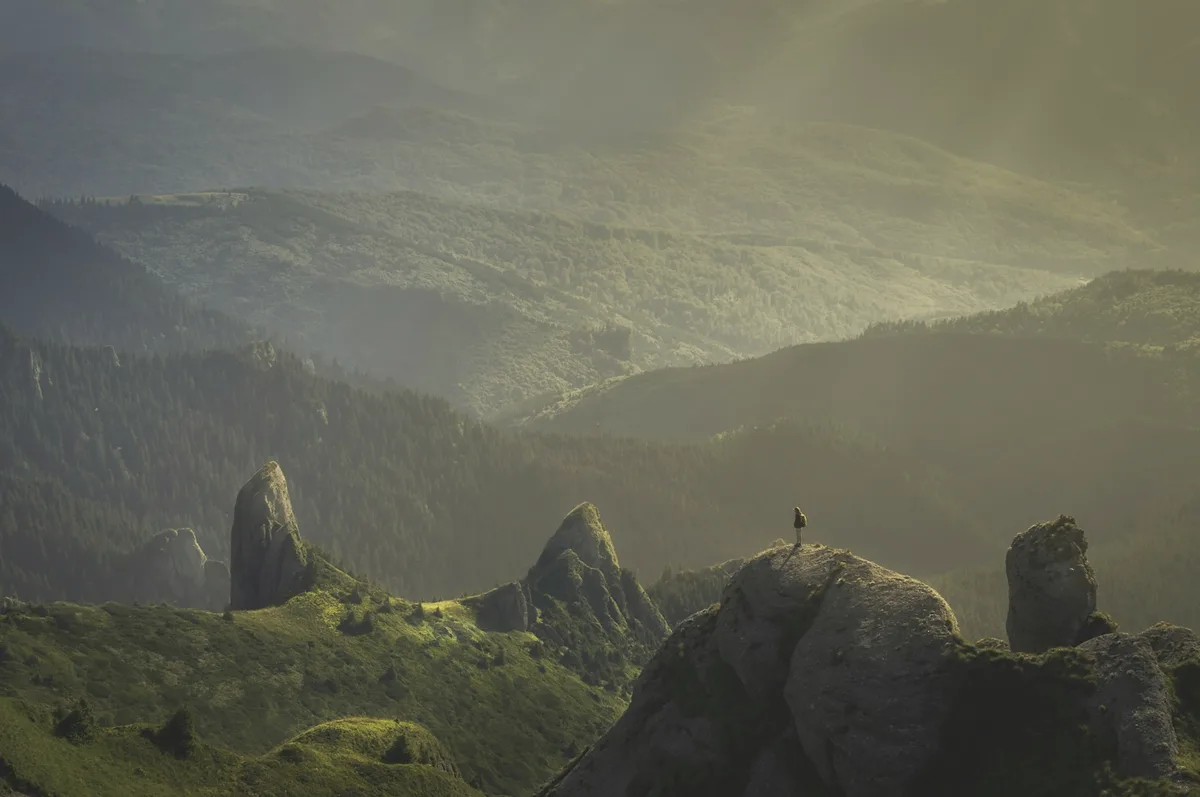
A hillside landscape before and after a contrast curveCustom curve
Curves · RGBMidtone point
Input 128Output 150
Live demo01 / 06

01Presets

Six curves, six moods

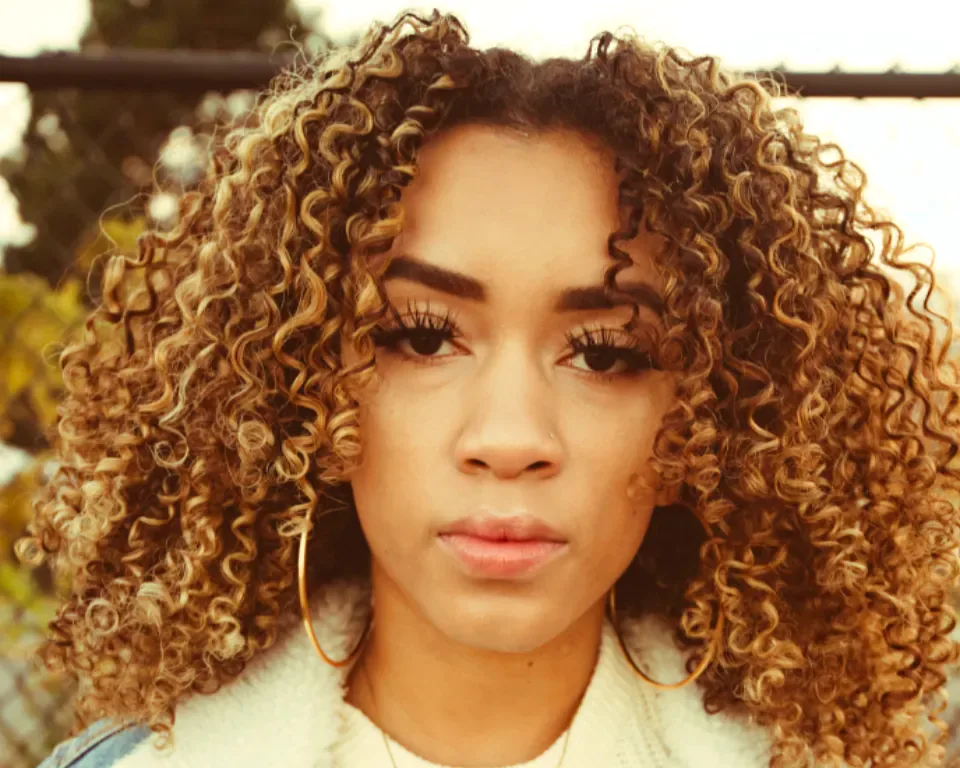
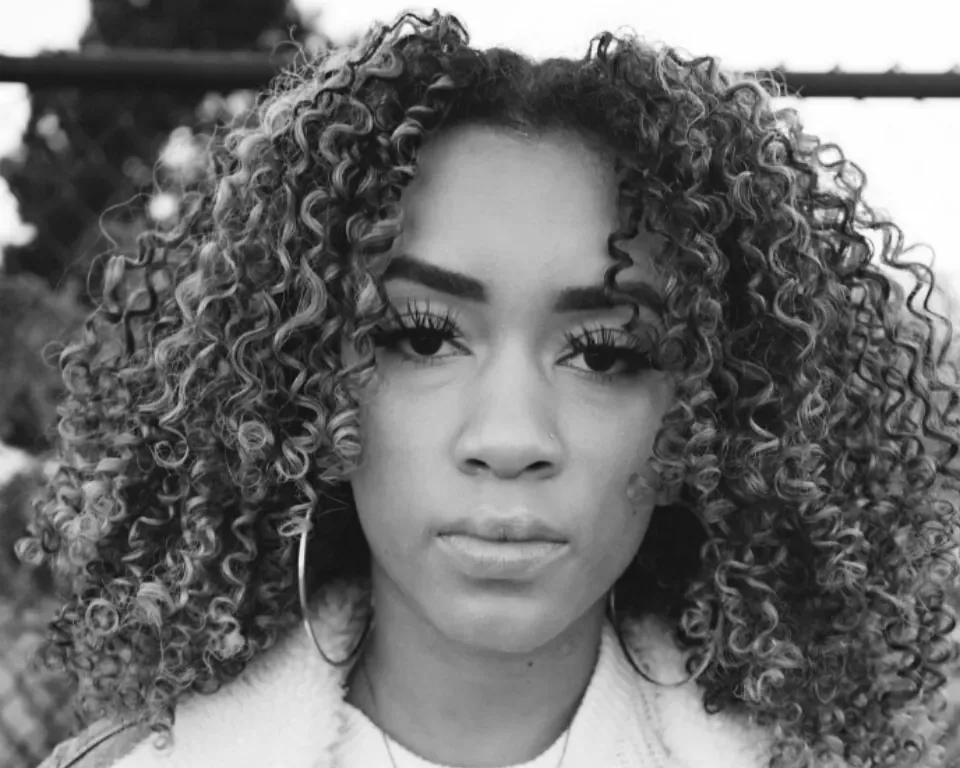
Start from a preset, then drag it your own way. Every one is the same editable Curves adjustment, so you can come back and change it.

03How it works

Three steps. Seconds.

  1. 01Open a photoJPEG, PNG, WebP, HEIC (in Safari), PSD or Camera RAW.
  2. 02Add CurvesImage ▸ Curves, or press Ctrl+M (⌘M on a Mac).
  3. 03Drag the curveClick to add points and drag them, or pick a preset. Change it any time, then save your project.

04Why CutLift

Built to be the best one

  • Per-channel curvesEdit the combined RGB curve or red, green and blue separately, over a live histogram.
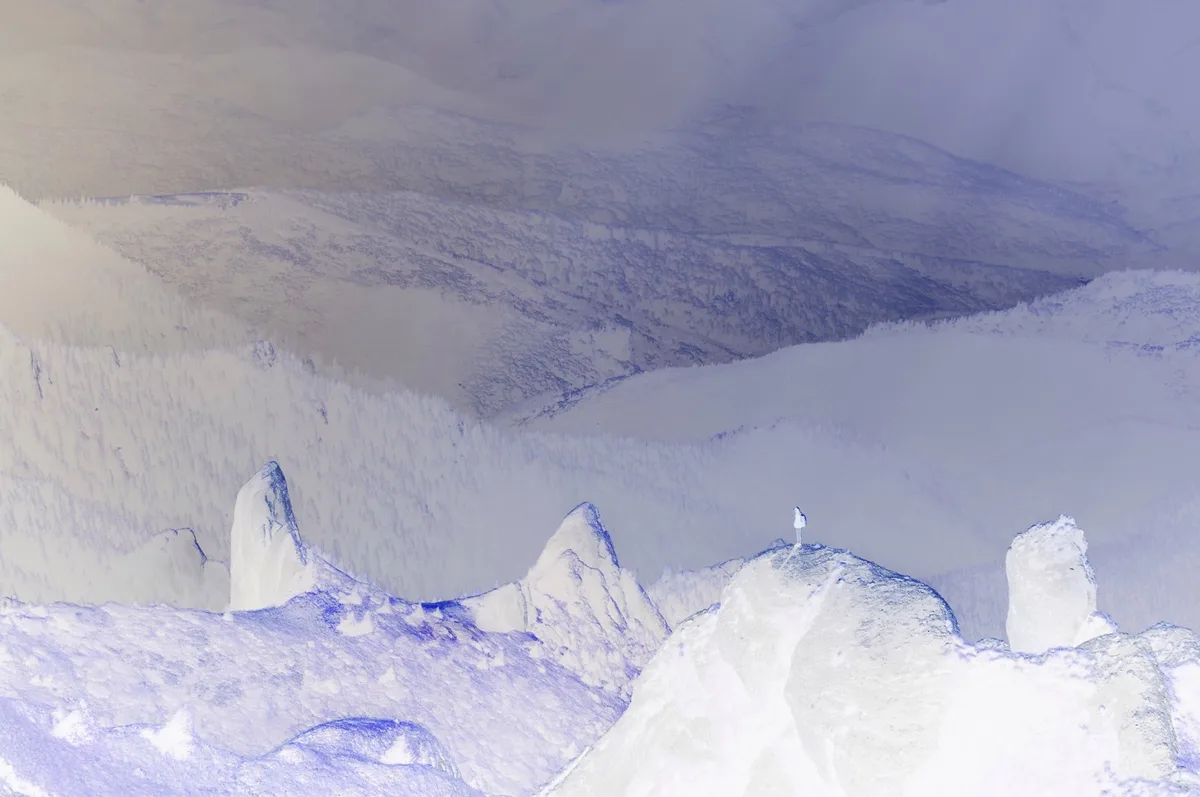
  • PresetsIncrease contrast, Strong contrast, Lighten, Darken, Faded matte and Negative, ready to start from.
  • Non-destructiveCurves is an adjustment in the edit stack: reopen it, change it or remove it later.
  • Only where you wantSelect a sky, a face or a product first and the curve applies only there.

Free and unlimited. CutLift Pro adds batch processing, upscaling, sky replacement and studio exports for $7.99/month.

05The guide

Reading the tone curve

What the curve shows

A tone curve maps input brightness, along the bottom, to output brightness, up the side. Untouched, it is a straight diagonal line. Raise a point and every tone at that level gets lighter; lower it and they get darker. The histogram behind the graph shows where the photo’s tones sit, so you can see whether you are working on shadows, midtones or highlights. Switch the channel from RGB to Red, Green or Blue to edit one colour at a time.
Common curves and how to make them

A contrast curve is a gentle S: lower a point about a quarter of the way along and raise one at three quarters. The steeper the middle, the stronger the contrast, and keeping the end points in place lets you adjust photo contrast without clipping. A faded matte look lifts the black point so the darkest tones never reach full black; the Faded matte preset does it in one step. Swapping the two ends makes a negative, and the Negative preset will invert a photo.

RGB curves change colour as well as tone. Raise the Red curve slightly in the highlights and lower Blue there for warm light, or lift Blue in the shadows for a cooler grade.

Precise control in the curves tool

Click a point to select it, then type exact Input and Output values or nudge it with the arrow keys (Shift moves ten levels at a time). Press Delete or drag a point off the graph to remove it. Auto sets the end points from the histogram, and the black, grey and white point eyedroppers sample the photo: click something that should be neutral grey to remove a colour cast. Press P to see the photo without the curve.

Layered, local and free

The curves adjustment has its own Opacity and blend mode; set it to Luminosity to change contrast without shifting colours. Apply to limits it to one layer or to everything outside it, for example only the sky. Like every adjustment it stays editable in the Filters panel, and project files keep it. These photo curves online are free and run on your device.

06Questions

Good to know

Is the Curves tool free?

Yes. Curves is free, and so are Levels and the other colour adjustments.

Shape the light with Curves

Free to start. Your photo never leaves your device.

Open the editor

49 more tools

Keep going