How-toUpdated
How to trim a video without installing software
Open the CutLift video editor in your browser, cut away what you do not need and save an MP4. Nothing to install, and your video stays on your computer.
Open the video editor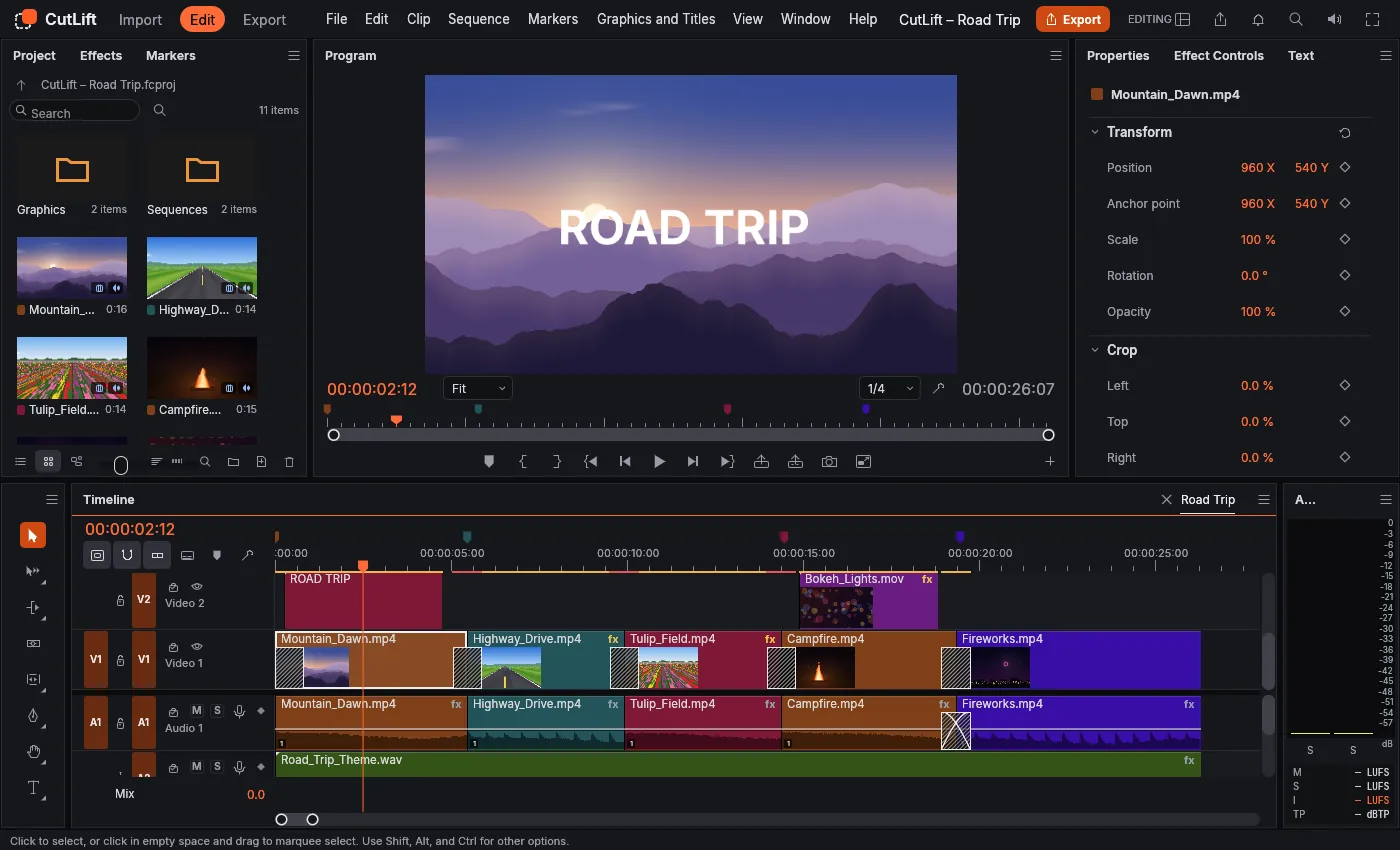
In short
- Open /video/ in a browser on a computer. Phones are not supported.
- Trim the start or end by dragging a clip’s edge on the timeline.
- Cut the middle: add an edit at each end of the part (Ctrl+K), select the piece, delete it.
- Editing is free. Exporting is CutLift Pro, and every account gets one free export.
- Your video is opened on your device and is never uploaded.
Which cut do you need?
| Goal | What to do on the timeline |
|---|---|
| Remove the start | Drag the left edge of the clip to the right |
| Remove the end | Drag the right edge of the clip to the left |
| Remove a part in the middle | Add an edit at both ends of the part, select it, delete it |
| Split into two clips | Add one edit at the playhead |
Step by step
- 1Open the editorGo to the video trimmer or open /video/ directly, on a computer.
- 2Add your videoDrop the file on the page, or use Import. MP4, MOV, WebM and MKV open.
- 3Find the cut pointMove the playhead over the timeline and step through until you reach the exact frame.
- 4Trim or cutDrag a clip edge to trim. To cut a middle part, press Ctrl+K at its start, move on, press Ctrl+K at its end, click that piece and delete it.
- 5Close the gap and play it backCheck the join by playing across it before you save.
- 6Export an MP4Use the Export button. Your first export is free; more need CutLift Pro.
Work on a copy of the file you care about, and keep the original until you have watched the exported video all the way through.
After the cut
Add a soundtrack with add music to video, or see everything the timeline can do in the online video editor.
Questions
Is trimming free?
Editing is free. Exporting is part of CutLift Pro, and every account gets one free export.
Is my video uploaded?
No. It is opened on your device and never uploaded.
Does it work on a phone?
No. The video editor needs a computer; phones see a message to that effect.
Does the export have a watermark?
No. Exports are clean, with no logo added.
Which formats open?
MP4, MOV, WebM and MKV with H.264, HEVC, VP9, AV1 or ProRes video, among others.
Sources
Checked on 9 November 2026. Rules change: if something here is out of date, tell us at [email protected].