RequirementsUpdated
Amazon product photo requirements
What the main image of an Amazon listing must look like, the size that turns on zoom, and how to get a product photo onto pure white without a studio.
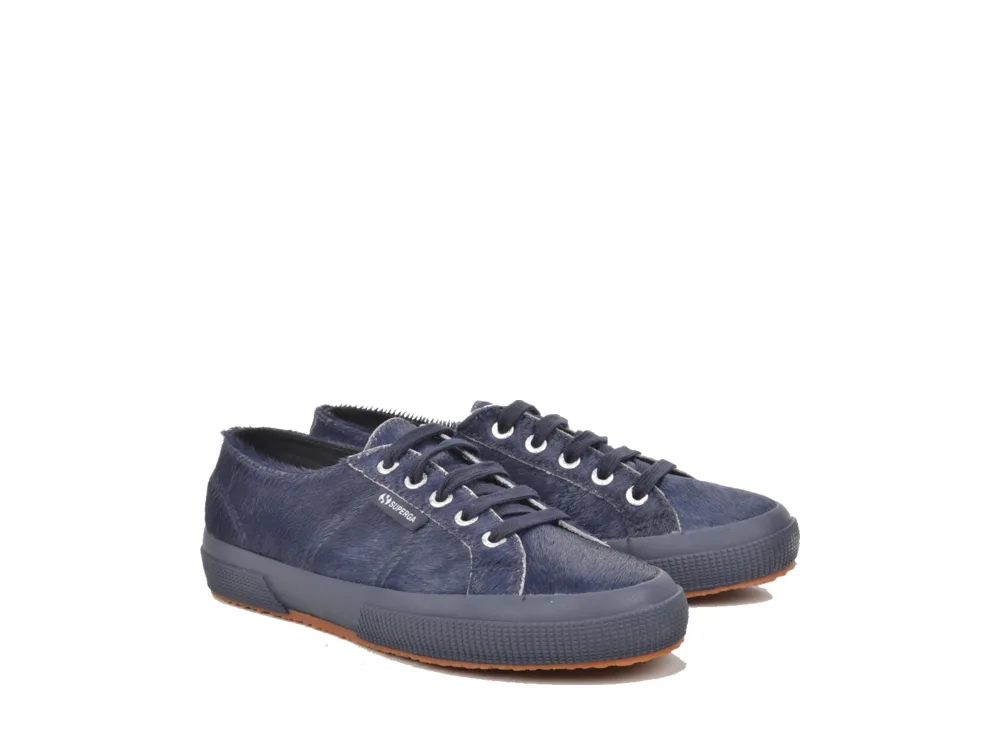
Put a product on pure white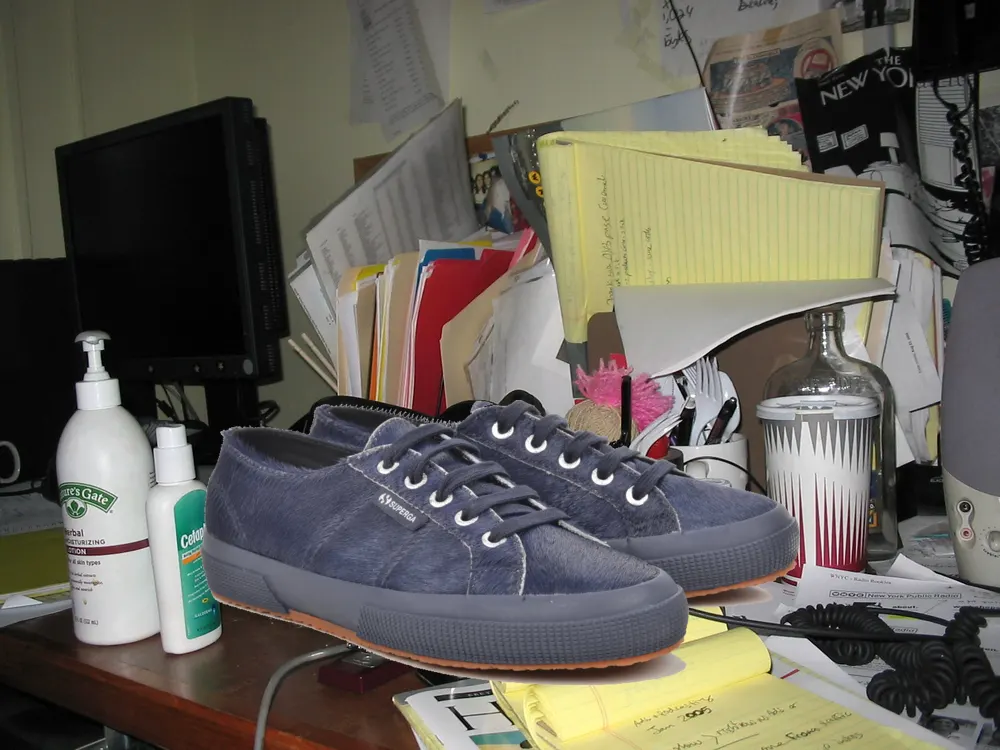
In short
- Main image background: pure white, RGB 255, 255, 255.
- The product fills about 85% of the frame.
- At least 1000 px on the longest side, so shoppers can zoom; 1600 px or more is better.
- JPEG is the usual format; PNG, TIFF and non-animated GIF are also accepted.
- No text, logos, watermarks, borders or props that are not sold with the item on the main image.
The main image rules
The main image is the photo shoppers see in search results, so Amazon is strict about it. Every product category follows the same base rules, and some categories add their own (clothing, jewellery and shoes have extra ones), so check your category’s style guide in Seller Central as well.
| Rule | Main image | Other images |
|---|---|---|
| Background | Pure white (RGB 255, 255, 255) | Any: lifestyle scenes are welcome |
| Product size in frame | About 85% of the frame | No fixed rule |
| Text, logos, graphics | Not allowed | Allowed (infographics, size charts) |
| Props and extra items | Only what is included in the sale | Allowed, to show the item in use |
| Size for zoom | 1000 px or more on the longest side | Same |
“Almost white” is the most common reason a main image is flagged. A studio shot can look white to the eye and still be 245 or 250 in the corners. Replacing the background with exact white fixes it for good.
Image size and file format
Zoom is turned on when the image is at least 1000 pixels on its longest side. Many sellers upload 1600 to 2000 pixels so the zoomed view stays sharp. A square image (1:1) fills the listing frame best, but other shapes are accepted.
- Format: JPEG is preferred; PNG, TIFF and non-animated GIF also work.
- Colour: sRGB keeps colours as you saw them.
- Keep the whole product in the frame: nothing cropped at the edges.
Make a compliant main image without a studio
You can shoot the product anywhere with even light, then replace the background with exact white in the browser. In CutLift the background removal is free and runs on your own device, so unreleased products are never uploaded.
- 1Open the photoOpen your product shot in the white background tool. JPEG, PNG, WebP, HEIC (in Safari) and RAW files open.
- 2Remove the backgroundThe AI finds the product. Brush in any part it missed, such as a cable or a clear lid.
- 3Set pure whitePick white as the new background: it is exact RGB 255, 255, 255, not a near-white.
- 4Fill the frameCrop with the 1 : 1 (square) ratio so the product takes about 85% of the picture.
- 5Save a JPEGOpen Convert, save as JPG and set the size in pixels to 1600 or more on the longest side. Upload it as the main image.
Selling the same item in several colours? Batch background removal (CutLift Pro) cuts out a whole folder in one go with the same settings.
What to put in the other images
The other slots are where you sell the product: show it in use, show its scale next to a hand or a common object, add a size chart, and call out features in an infographic. Text is allowed there. Keep the same lighting and colour across all images so the listing looks like one set.
Questions
What colour must the Amazon main image background be?
Pure white: RGB 255, 255, 255. Near-white (like 245) can get the image flagged.
What size should Amazon product photos be?
At least 1000 pixels on the longest side so zoom works. 1600 to 2000 pixels is a common choice.
How much of the frame should the product fill?
About 85% of the main image.
Can the main image have text or a logo?
No. Text, logos, watermarks and borders are not allowed on the main image. They are fine on the other images.
Can I make a white background for free?
Yes. CutLift removes the background and puts the product on exact white for free, in your browser. Downloads need a free account and have no watermark.
Sources
Checked on 9 November 2026. Rules change: if something here is out of date, tell us at [email protected].